In Metashape, you can filter tie points and also perform clean tie points based on certain parameters. This helps with analysis and also with removing points that have large errors.
The article describes the following steps:
Clean tie points
Users define the parameter themselves, since everyone uses different data, different cameras, different shooting scenarios. We recommend don't delete more than 10-20% of tie points per iteration with all clean tie points criteria applied. We recommend to remove points before optimizing photo alignment. If the points were deleted after optimization, we recommend performing the optimization again.
"Clean tie points" option was previously used via "Gradual selection".
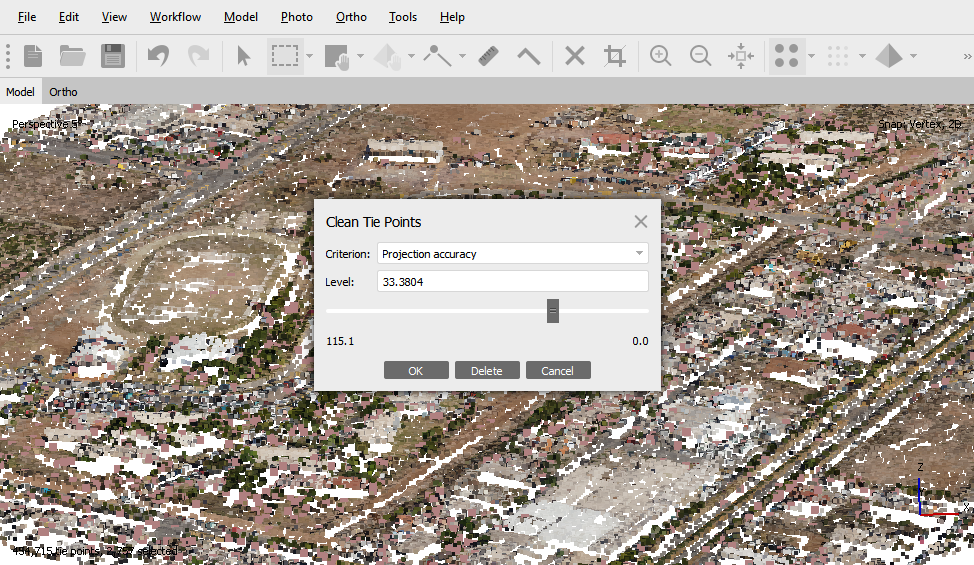
Select Tools > Tie Points > Clean Tie Points command to open Clean Tie Points dialog window.
Reprojection error
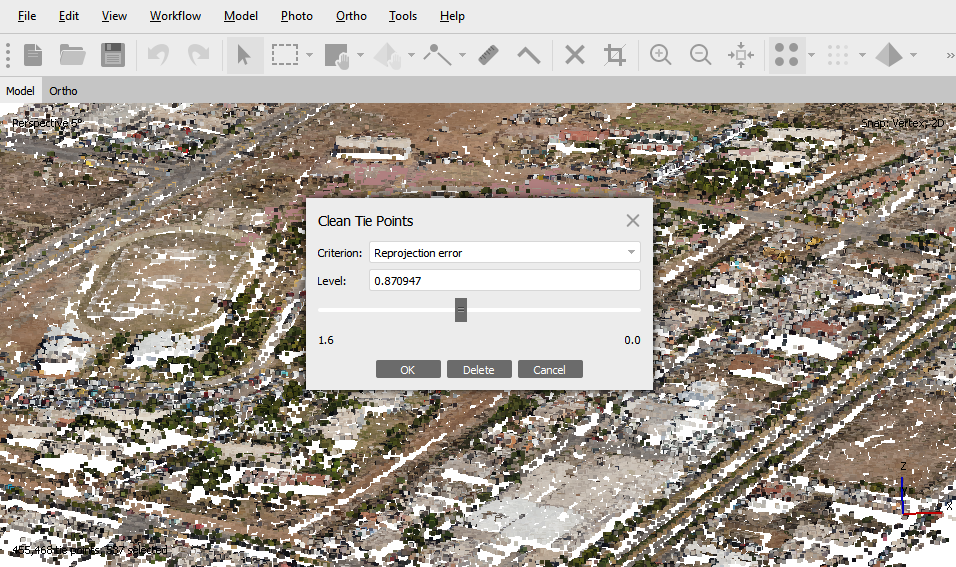
One of the parameters you can select for clean tie points is Reprojection error. "Reprojection error" - demonstrates the accuracy of point positioning and is specified in pixels.
In the Clean Tie Points dialog window, by adjusting the slider, the points that correspond to the given value will be selected. To delete the selected points, click the Delete button.
Reconstruction uncertainty
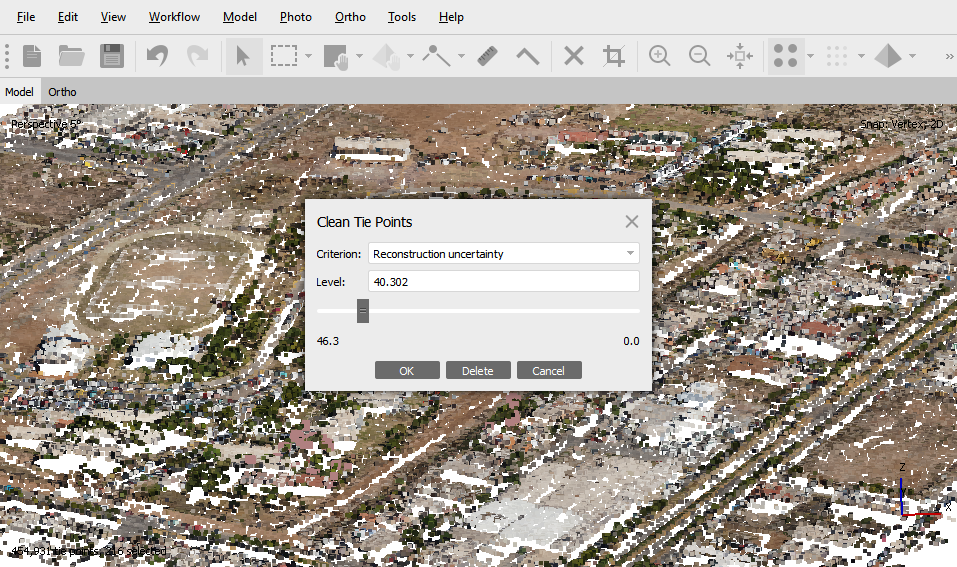
Image count
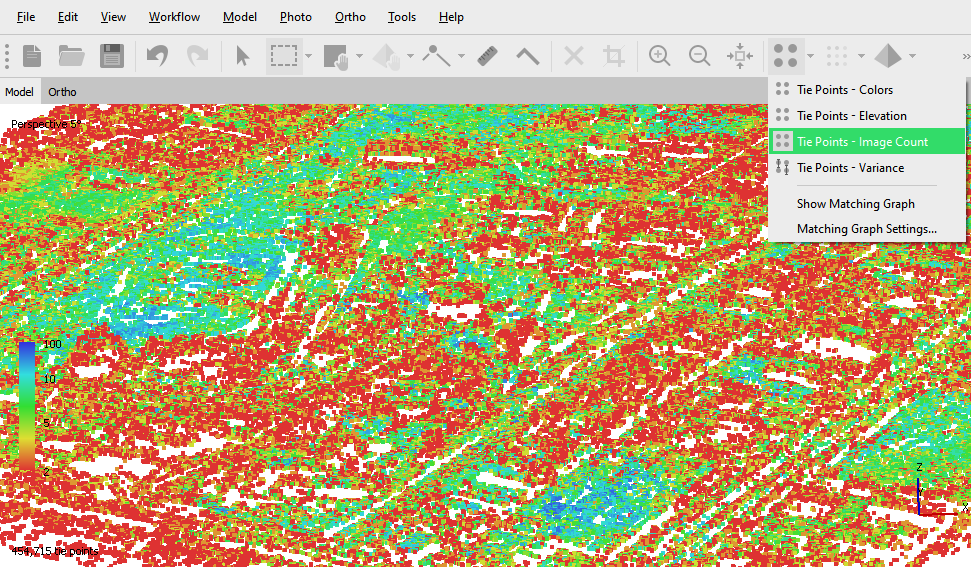
Helps to select points based on the Image count criterion. It allows to delete tie points with a selected multiplicity. For example, in the screenshot below, all points that are visible in at most 2 images are selected:
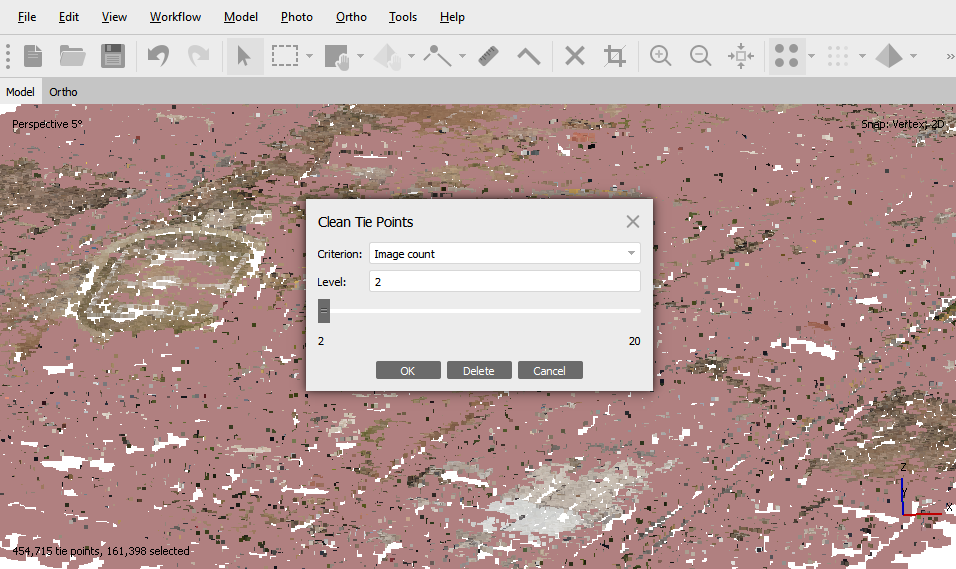
It is also possible display tie points colored by image count in the Model view. Select Tie Points - Image Count option on the Toolbar:
Projection accuracy
Filter tie points
It is also possible to filter tie points by Duration and Group Count criteria.
Filter Tie Points by Duration
The option is available in Tools > Tie Point > Filter by Duration menu:
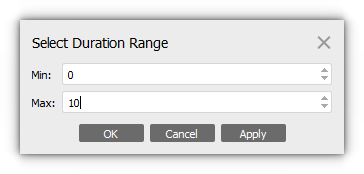
The tool filters tie points by the specified time interval. The Min and Max values for interval are set in seconds. As a result of filtering, you will get tie points, the projections of which are present in the images taken during the specified period of time.
Filter Tie Points by Group Count
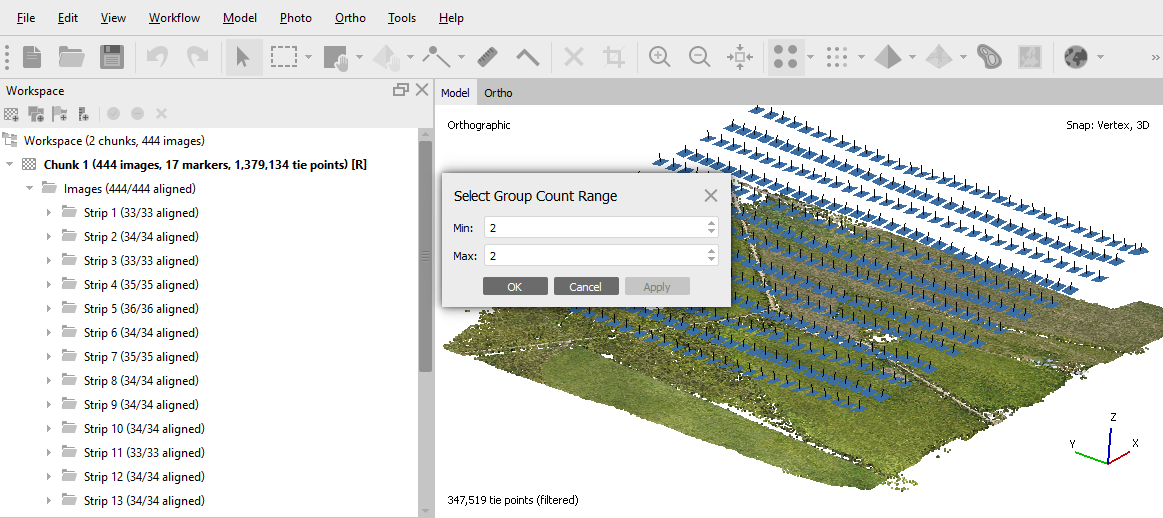
Filtering is applied to images from groups. If you grouped images, for example, by flight line, and you need to get only tie points which are contained in the overlap between neighboring routes, then you can filter by group. Select Tools > Tie Points > Filter by Group Count and specify the minimum and maximum number of groups in which the tie points projections should be included. And click Apply button. The filtered points will be displayed in the Model view: