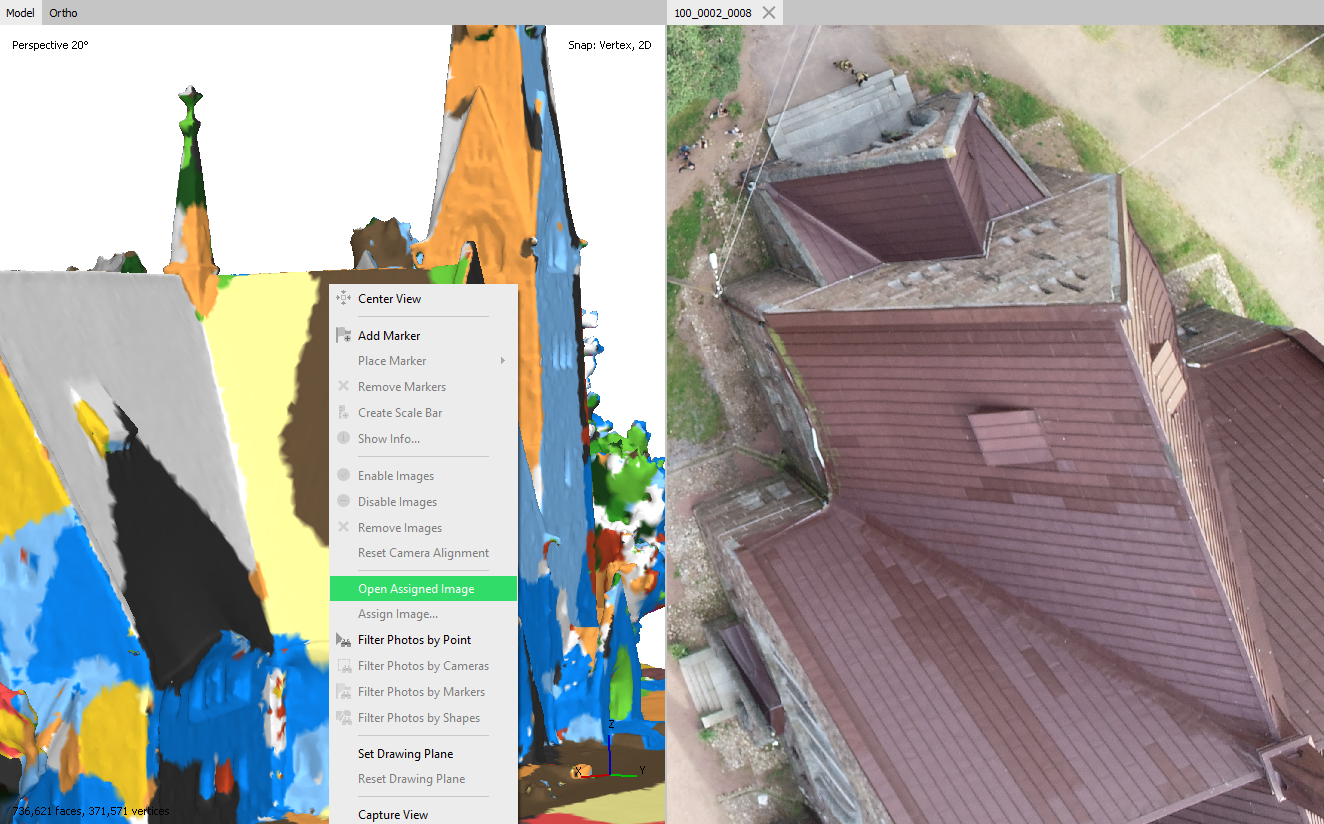
Starting from Agisoft Metashape 2.3 version, the texture editing tool is available. The tool allows to edit a small area on the texture by selecting a particular image. It can be useful for editing small areas of texture, for example, where the leaves are on the buildings, and you have images where they are not.
The tool is available from the context menu. Select the desired area on the model using the Selection tools on the Toolbar and choose the Assign image command from the context menu:
Before editing a texture, we recommend you to enable the Show Shapes button on the Toolbar to see the changes later:

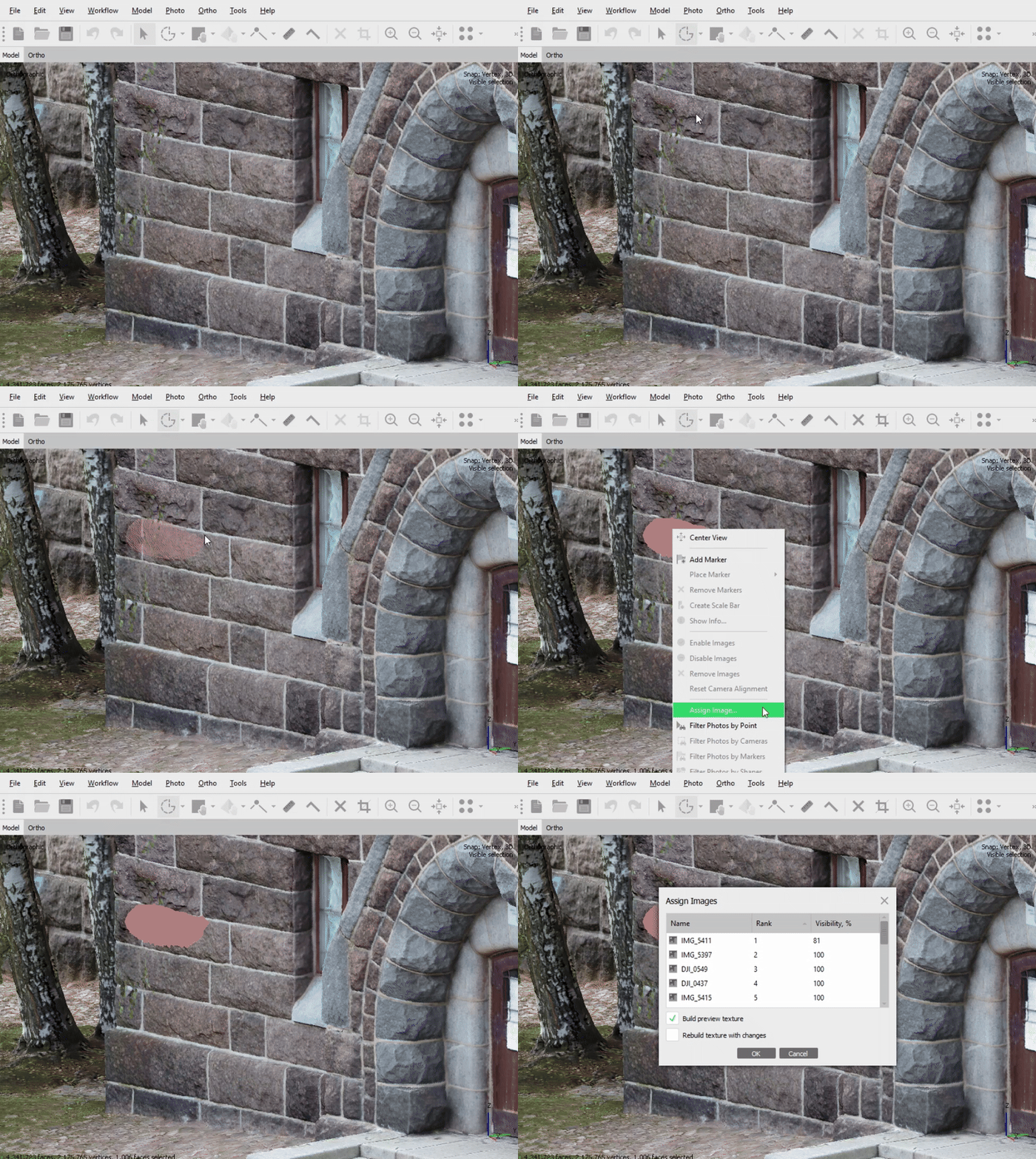
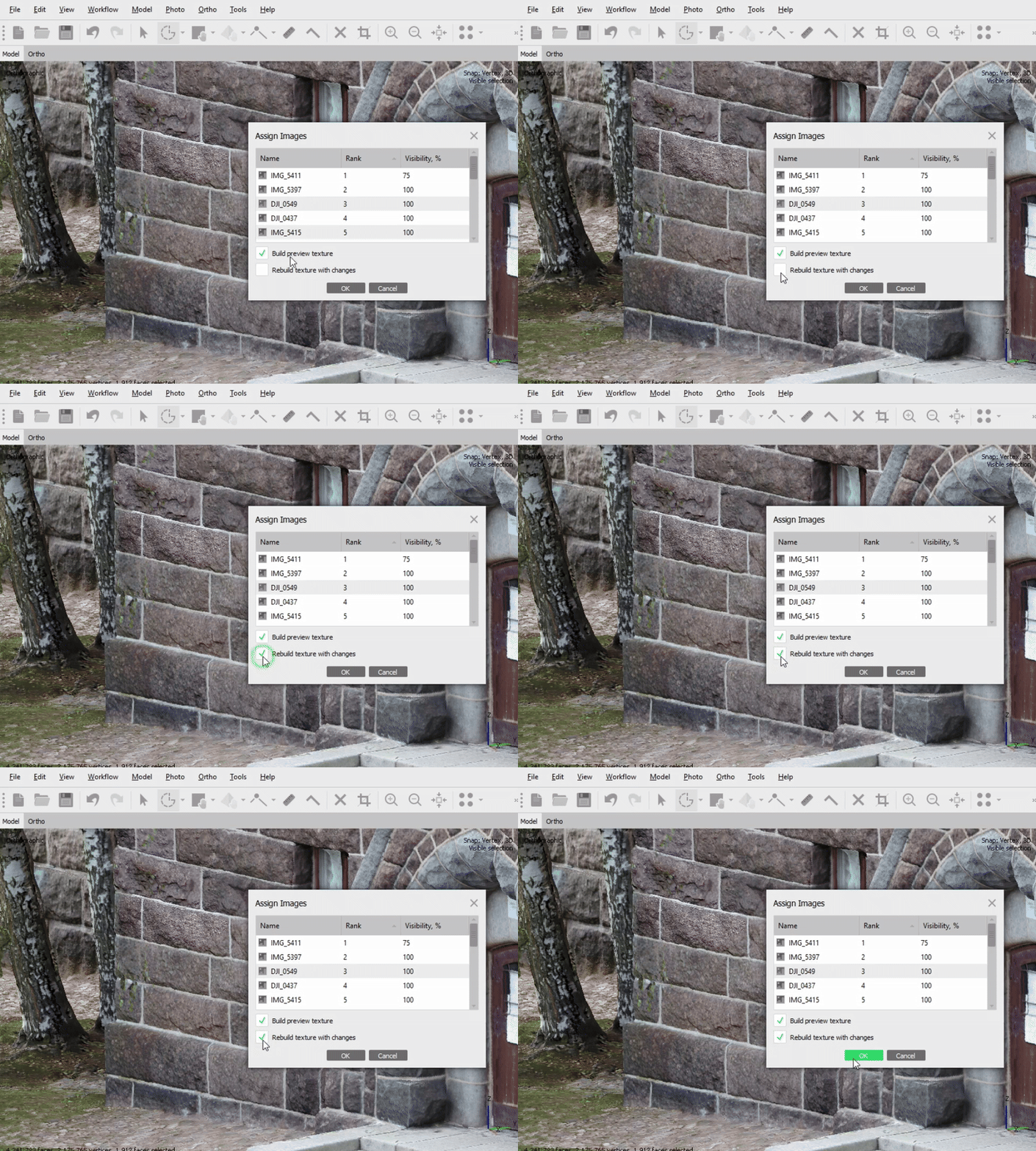
You can select a particular image in the Assign Images dialog window:
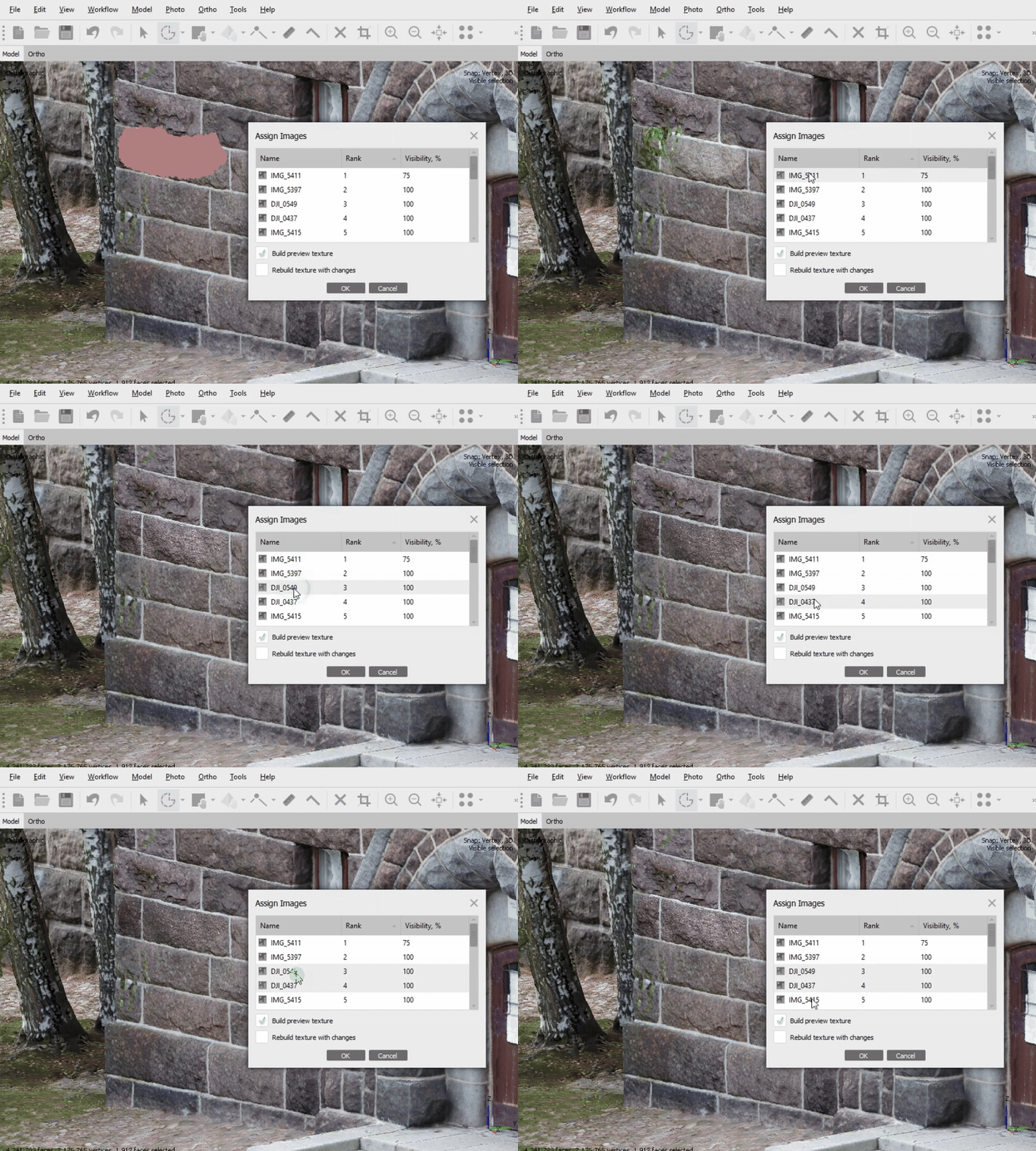
If you use the Build preview texture option, the changes will be displayed in the Model view immediately after closing the window.

If the Build preview texture option is not enabled then the areas where the texture has been manually edited will be selected in the blue polygon:
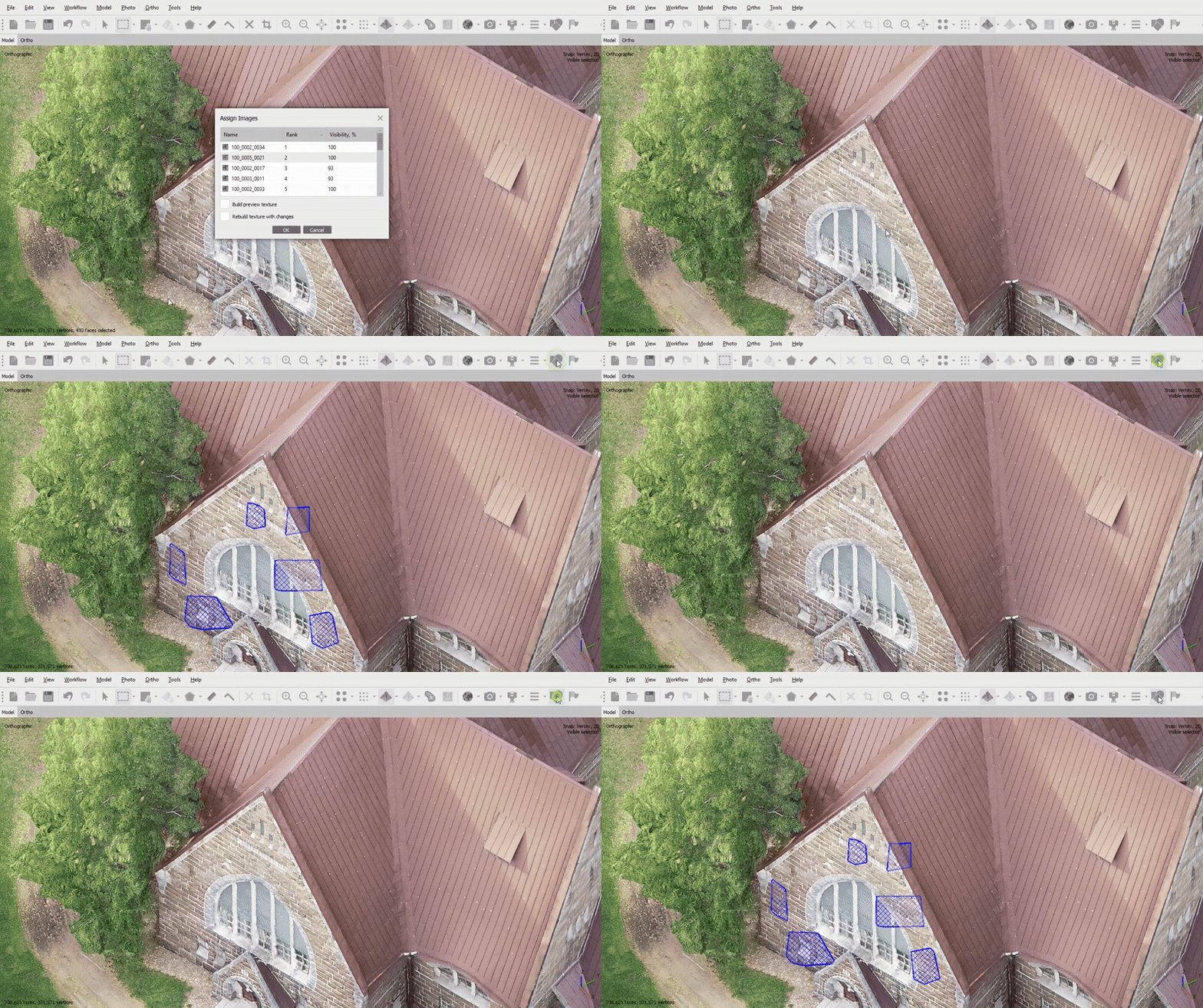
After you have selected the desired image, you can rebuild the texture using the corresponding option (enable Rebuild texture with changes option):
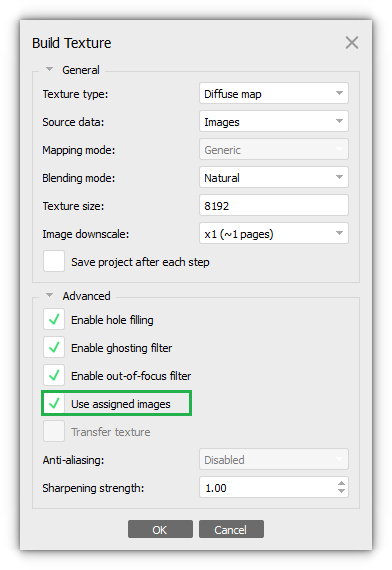
It is also possible to rebuild the texture later, taking into account all the edited areas using the Build Texture dialog window (Workflow > Build Texture). It is important to enable the Use assigned images option:
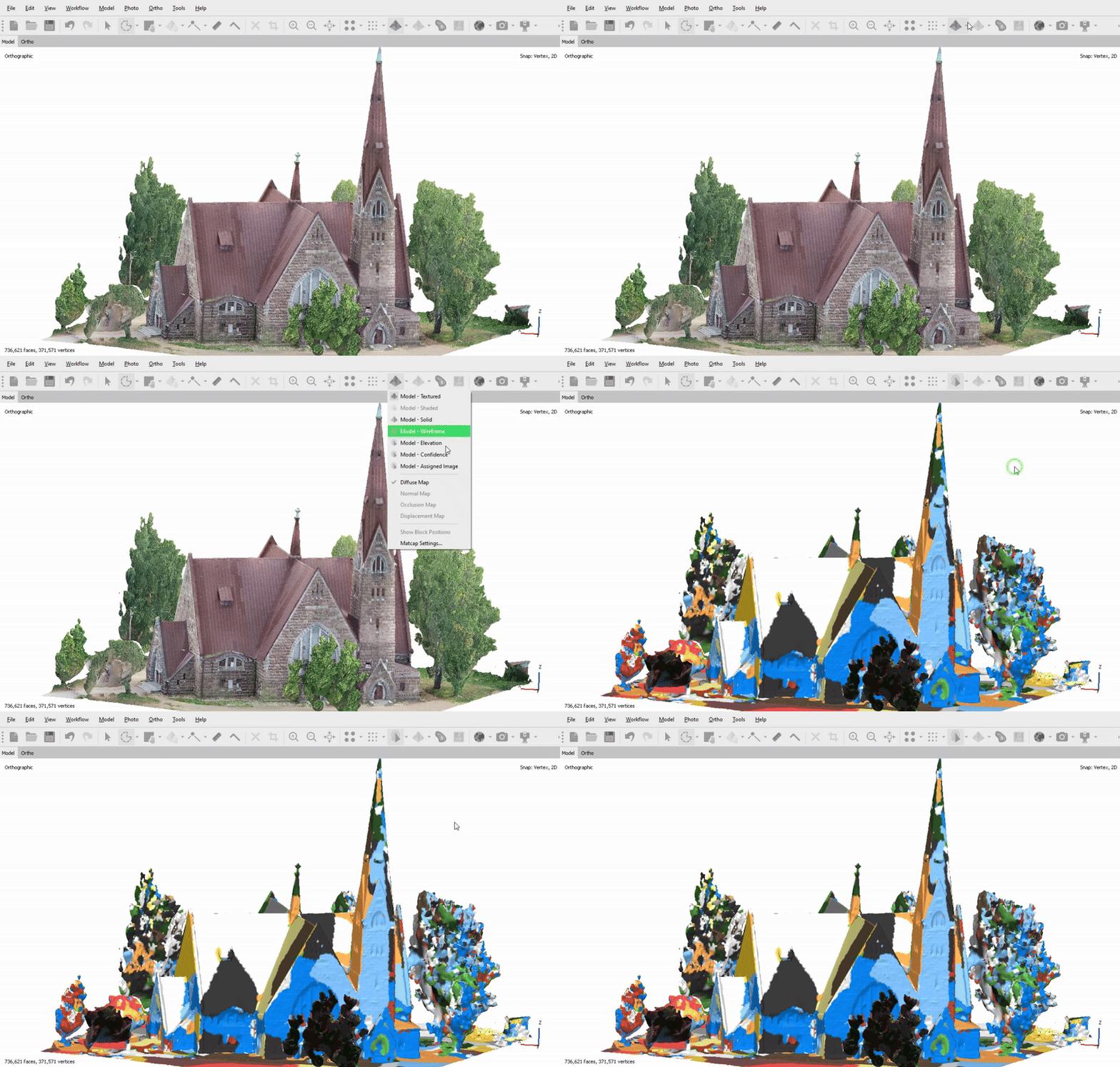
For texture analysis, it may be convenient to color the model by the areas to which the images were applied. For this you need to select Model - Assigned image option from the drop-down Model menu on the Toolbar:
You can also check which image is applied to each area using the Open Assigned Image option from the context menu: