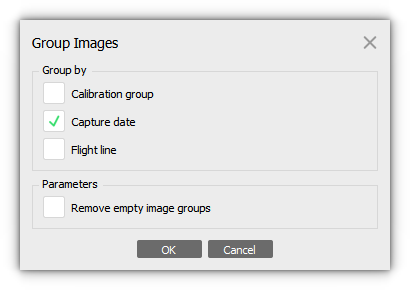
In Metashape, images are automatically divided into calibration groups if different cameras are used in the project. However, there are cases when data is captured with a single camera, but for example, at different times. In this case, the calibration parameters may have changed, and we recommend dividing the images into calibration groups in this situation.
The article describes the following methods for creating calibration groups:
Create a calibration group manually
To create calibration group manually you need to select Tools > Camera Calibration. In the camera calibration dialog box, select the images you want to combine into a separate calibration group:
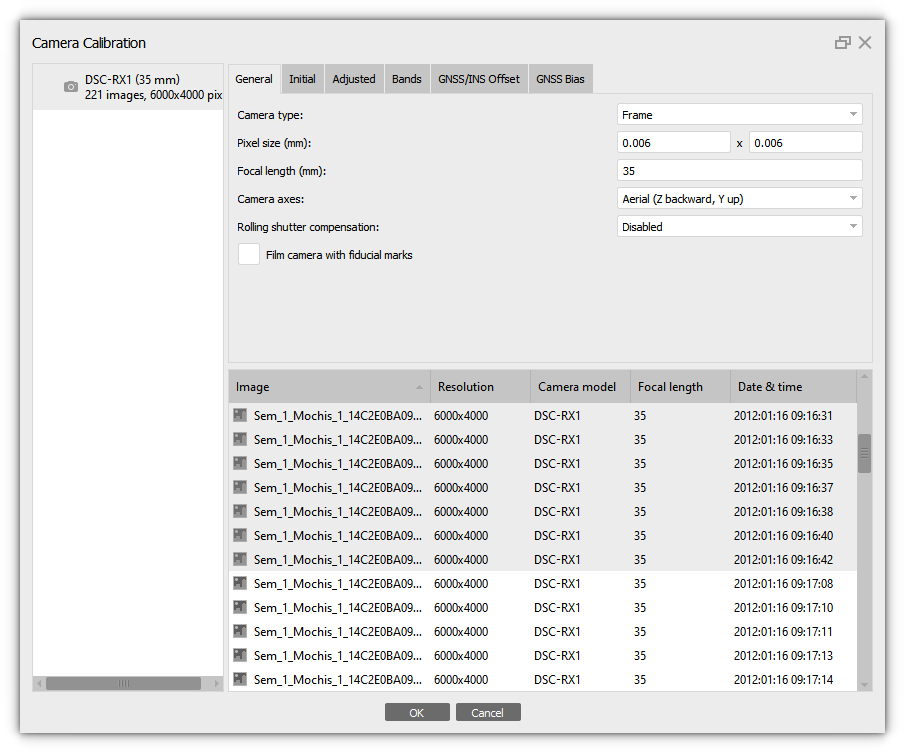
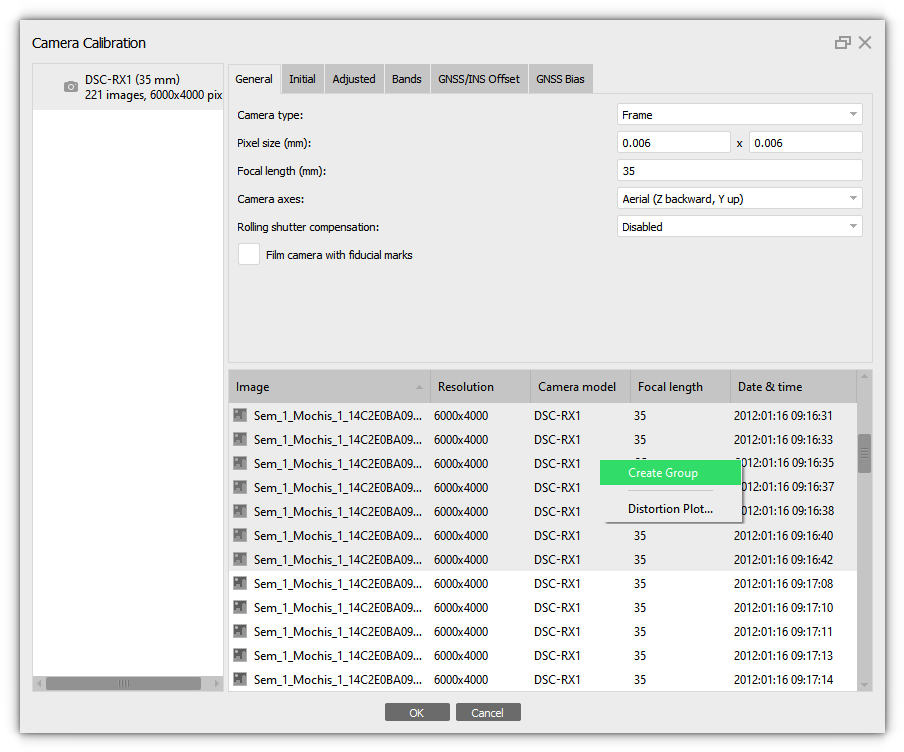
After that, select the Create Group command from the context menu:
As a result 2 calibration groups will be displayed in the camera calibration dialog window:
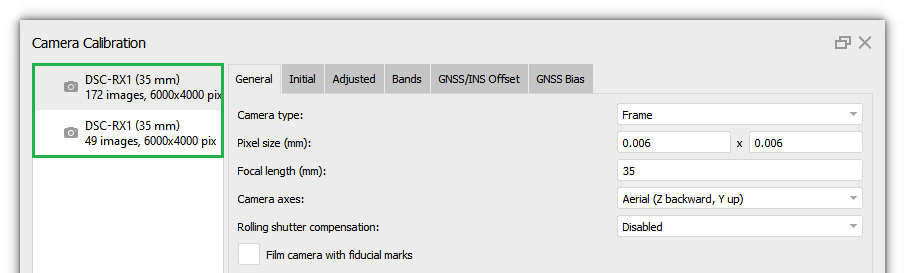
To apply the changes, click the OK button.
Create calibration groups automatically
If the images are sorted by routes in the Workspace pane, you can divide them into calibration groups according to the routes:
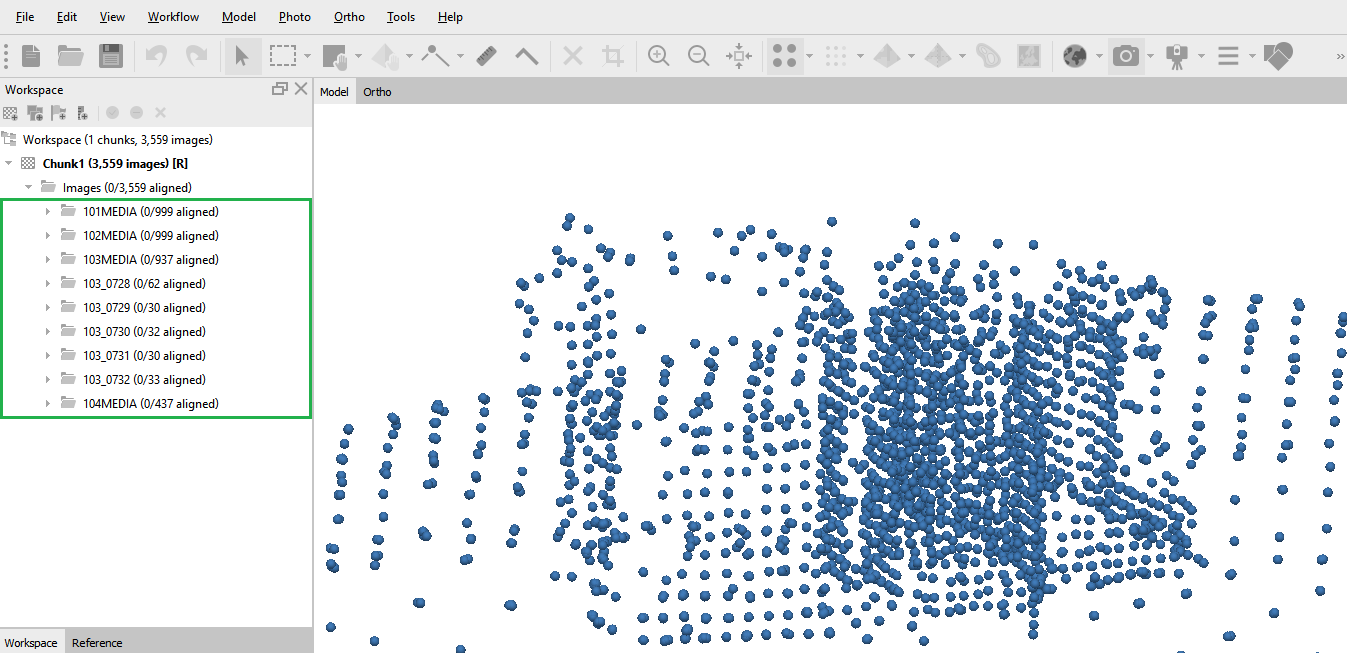
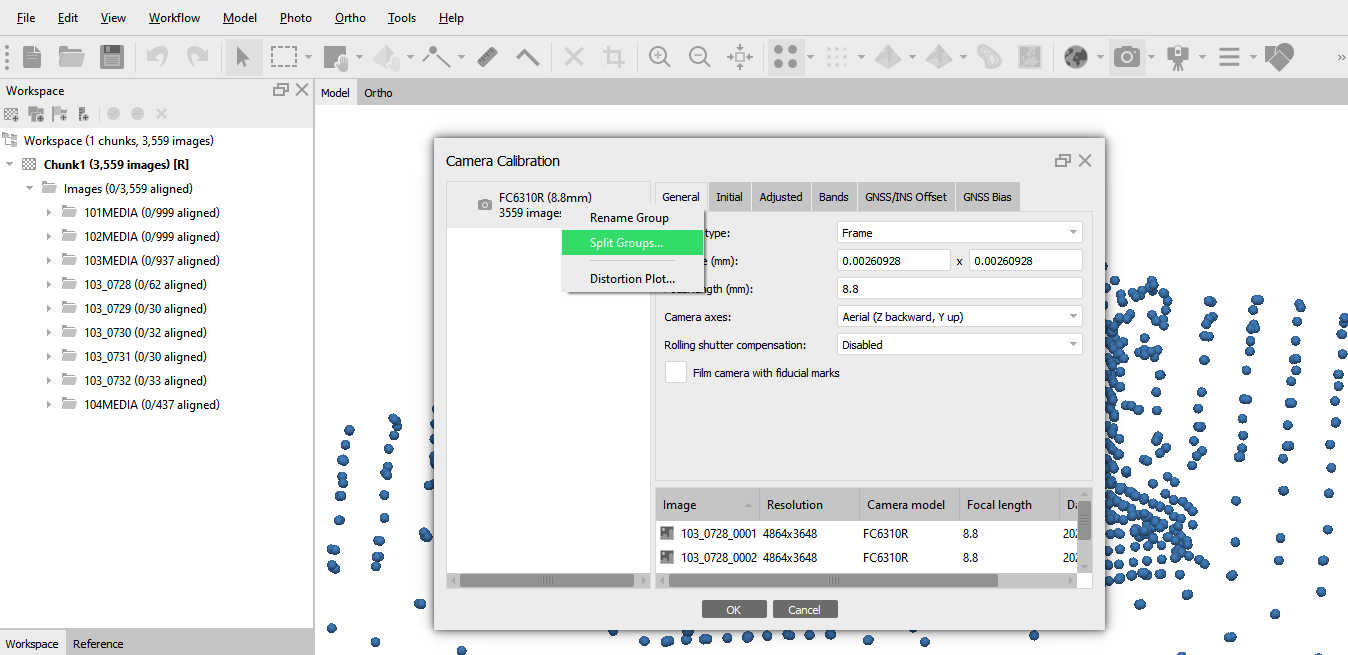
You need to open Camera Calibration dialog window (select Tools > Camera Calibration) and choose Split Groups... option from the camera context menu:
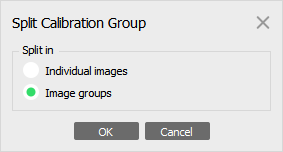
And choose Image groups option in the Split Calibration Group dialog:
After which the groups will be automatically created:
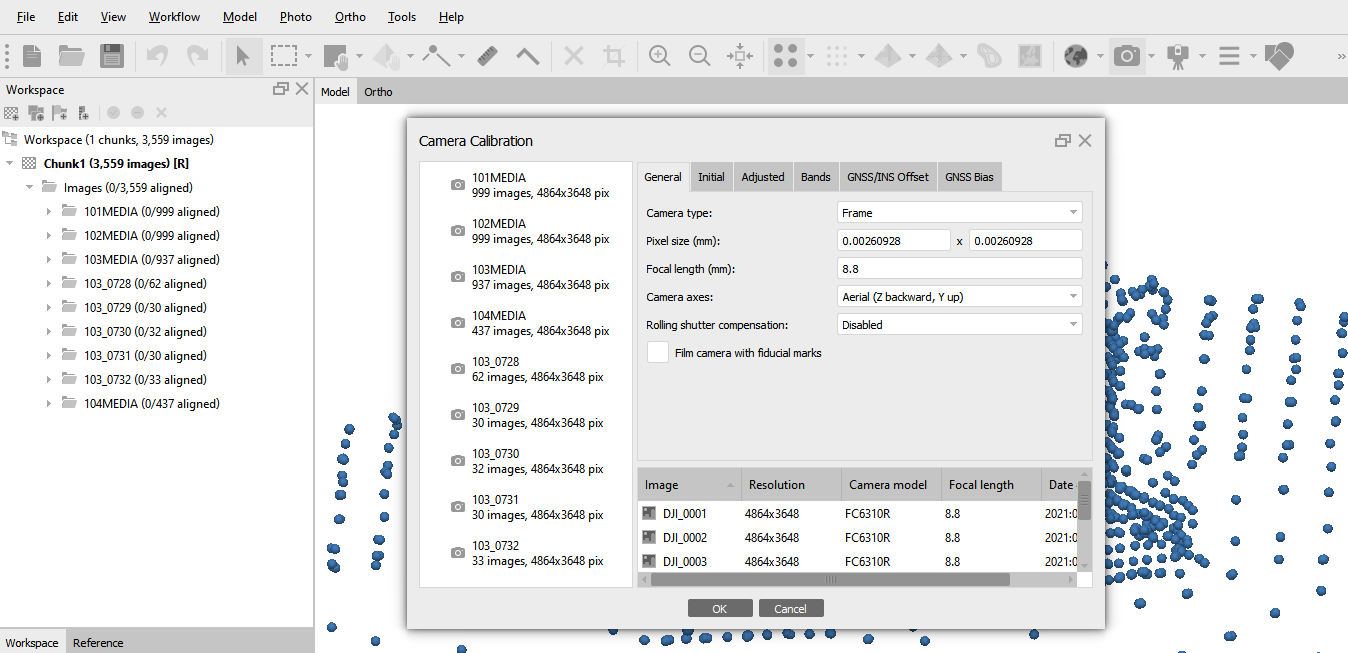
We recommend dividing into calibration groups before alignment.
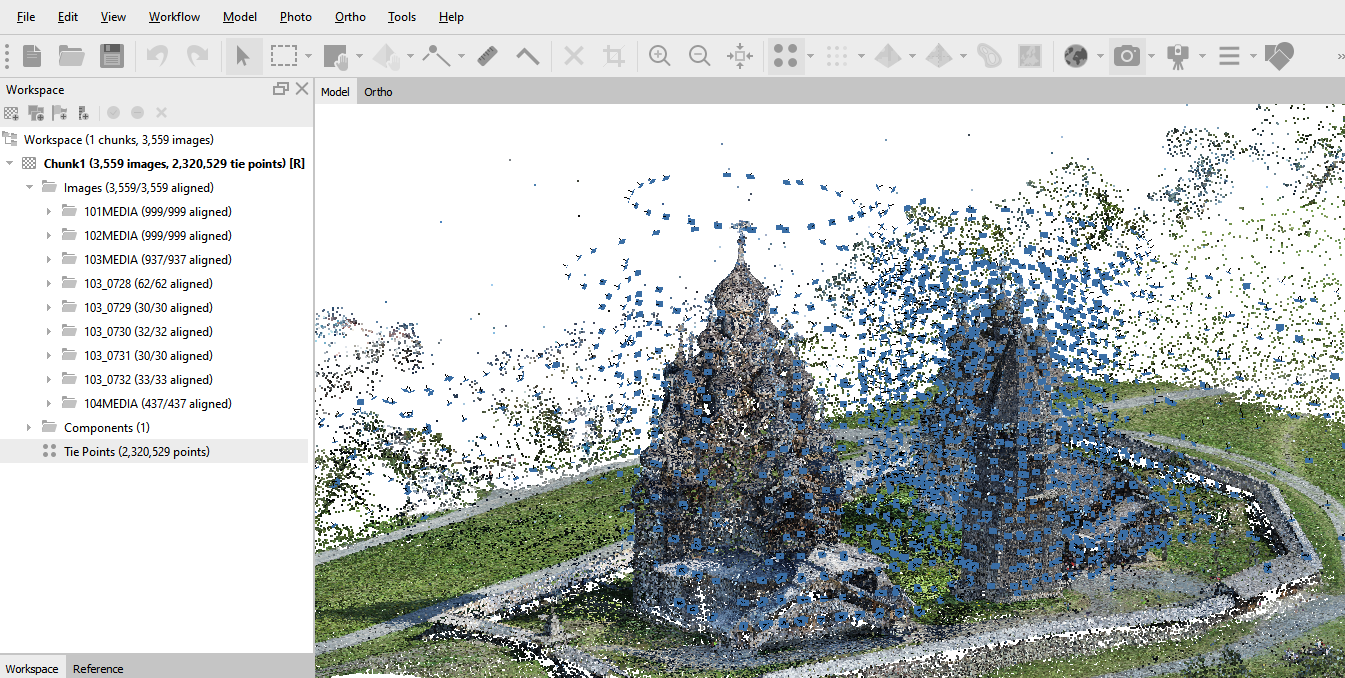
If the images were uploaded together and are not divided into folders in the Workspace pane, they can also be automatically grouped. To do this, select the images on the Workspace pane and choose Move Images > Group by... from the image context menu:

And in the dialog box, you can select the parameter by which you would like to group the image: