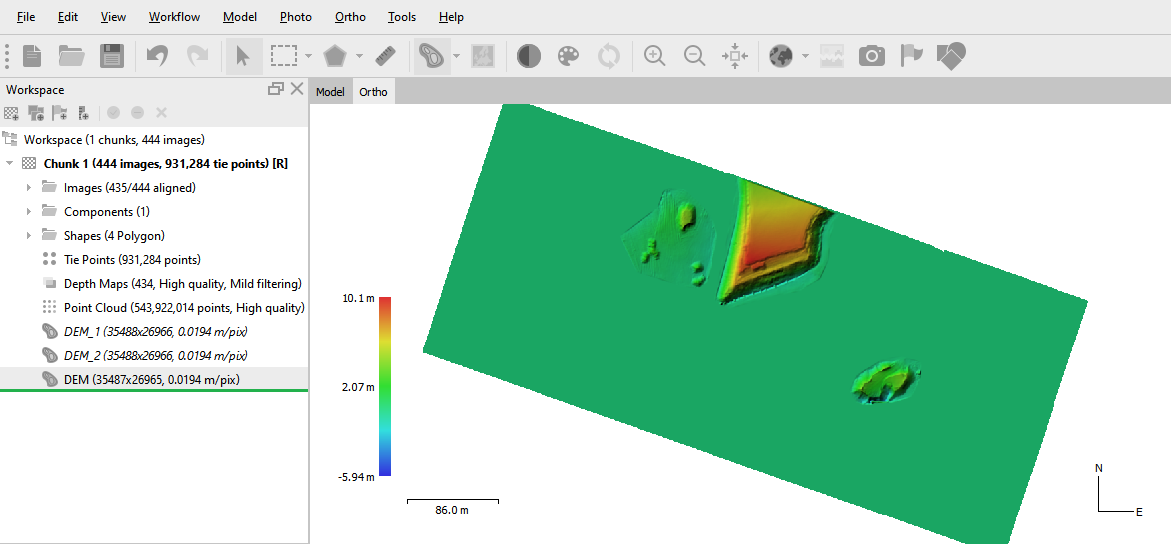
This tutorial describes the functionality that provides Agisoft Metashape Professional for DEM transformation. It is possible to subtract one DEM from another and get the observed changes. This can be useful if you want to check changes between DEM files that were built at different years for the same area, or if you want to track changes in specific features, such as embankments and so on.
You can find a detailed description of building DEM in our solution - DEM generation.
Import DEM:
You can add a DEM file built in another program or in another chunk to your project using the import command. Select File > Import > Import DEM.... DEM can be imported in one of the GeoTIFF Raster Data formats.
More than one instance of DEM can be stored in one chunk. In case you want to save current DEM instance and build a new one in the current chunk, right-click on DEM and uncheck Set as default option in the context menu. In case you want to save current DEM instance and edit its copy, right-click on DEM and choose Duplicate option.
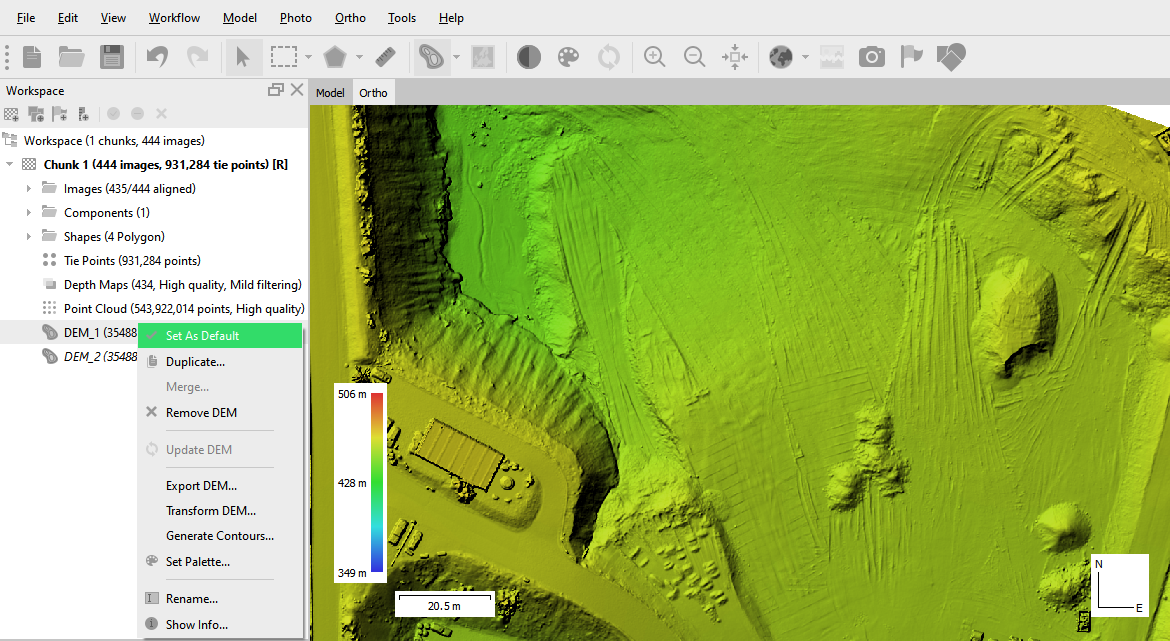
Сalculate transform DEM:
Select the DEM (enable Set as default option from the context menu) from which you want to subtract another DEM on the Workspace pane. And select Transform DEM... command from Tools menu (Tools > Transform DEM...).
Be careful, at this stage you choose the DEM from which you will subtract.
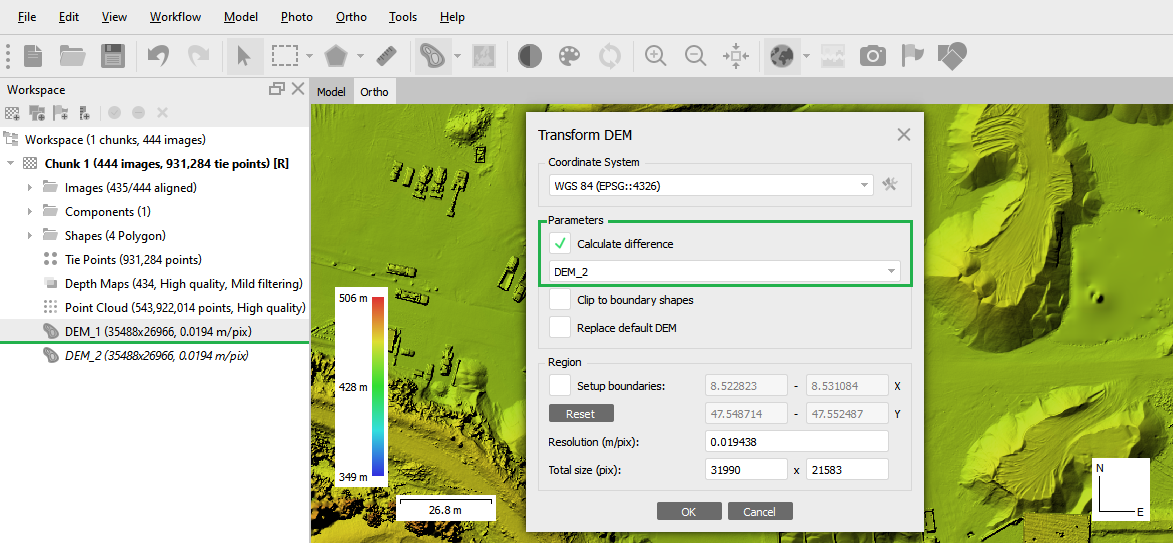
In the Transform DEM dialog select the check Calculation difference box and select the file from the drop-down list for calculation. Press OK button to calculate transform DEM.
When the procedure is finished, a layer with a transform DEM label will be added to the project file structure shown on the Workspace pane: