
Coded targets and non-coded targets are specially prepared, yet quite simple, real world markers that can add up to successful 3D model reconstruction of a scene. Non-coded targets can mark object point to be used for georeferencing.
The difference between coded and non-coded targets is that while a non-coded target looks like an ordinary full circle or a figure (circle / rectangular) with 4 segments, the coded target has a ring parted in black and white segments around the central full circle:
 | 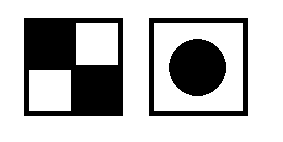 |
| Coded targets | Non-coded targets |
An example of a workflow with coded targets you can find in our article - Coded targets and Scale bars
Non-coded targets can also be automatically detected by Metashape. The article describes a method for automatically detecting non-coded tarbets:
Align Photos
It is necessary to run align photos procedure first for non-coded targets to be matched automatically. Select Workflow > Align Photos command. Set following recommended values for the parameters in the Align Photos dialog:
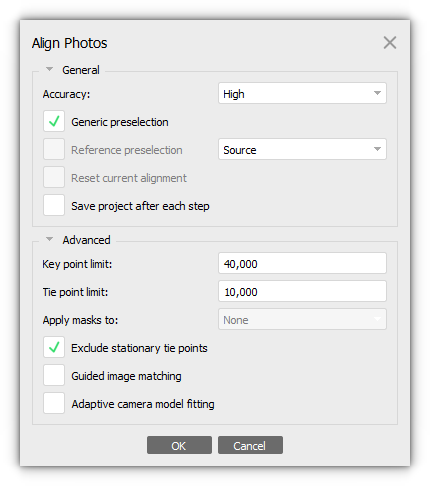
Click OK button to start photo alignment.
More detailed description of all the parameters, please refer to our user manual - https://www.agisoft.com/downloads/user-manuals/
Detect non-coded targets
Select Tools > Markers > Detect Markers command. Specify parameters (Marker type, Tolerance, Maximum residual (pix)) of detector in Detect Markers dialog. For a non-coded target select the appropriate target type in the Marker type section from the available options: Cross (non coded) and Circle (non coded):
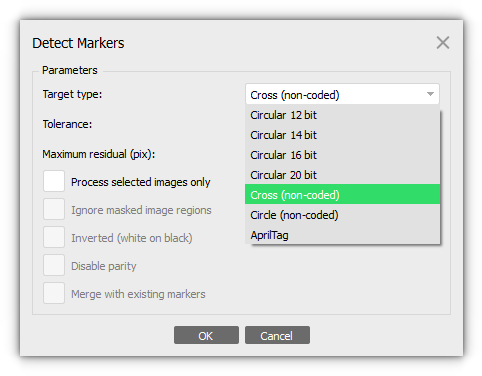
- Tolerance parameter doesn't correspond to the size of the target, but rather defines the tolerance of the projection detection. Set the value corresponding the maximum difference of the target on oblique images from the ideal target pattern.
- Maximum residual (pix) parameter indicates how large the residual value of the detected center is.
Click OK and wait until marker detection procedure is finished.
Import coordinates for non-coded targets
Non-coded targets are more appropriate for aerial surveying projects due to the simplicity of the pattern to be printed on a large scale.
When non-coded targets are detected Metashape allows automatic matching of detected non-coded targets with referencing coordinates imported from file. Select File > Import > Import Markers.... or click Import Reference button on the Reference pane.
For non-coded targets it is important to enable Ignore labels parameters in the Import CSV dialog.
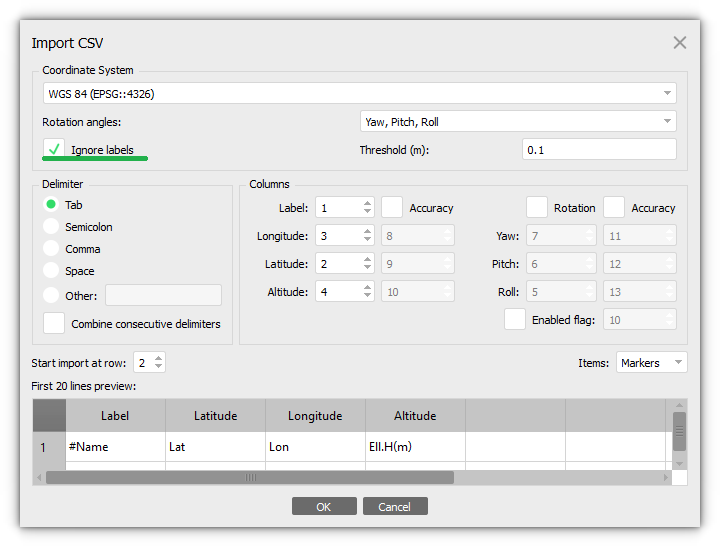
Metashape will try to match non-coded targets markers with imported referencing coordinates markers, in case of success non-coded targets markers will have corresponding coordinates. In case automatic matching does not work or works with errors, manual assignment of an identifier is required if some referencing coordinates are to be imported from a file correctly.