This article describes the basic workflow for building a 3D model of an object. The article describes the following processing steps:
The source data has a strong impact on the resulting model. Therefore, it is important to plan the shooting scenario and consider the many factors that affect the images - Image Capture Tips.
You can find an example of data on our website - https://www.agisoft.com/downloads/sample-data/
Add Photos
To add photos select Add Photos... command from the Workflow menu (Workflow > Add Photos...). In the Add Photos dialog browse the source folder and select files to be processed.
Recommended masking all irrelevant elements on the source photos (background, accidental, foreground, etc.). You can find more information in the tutorial - Masks.
Align Photos
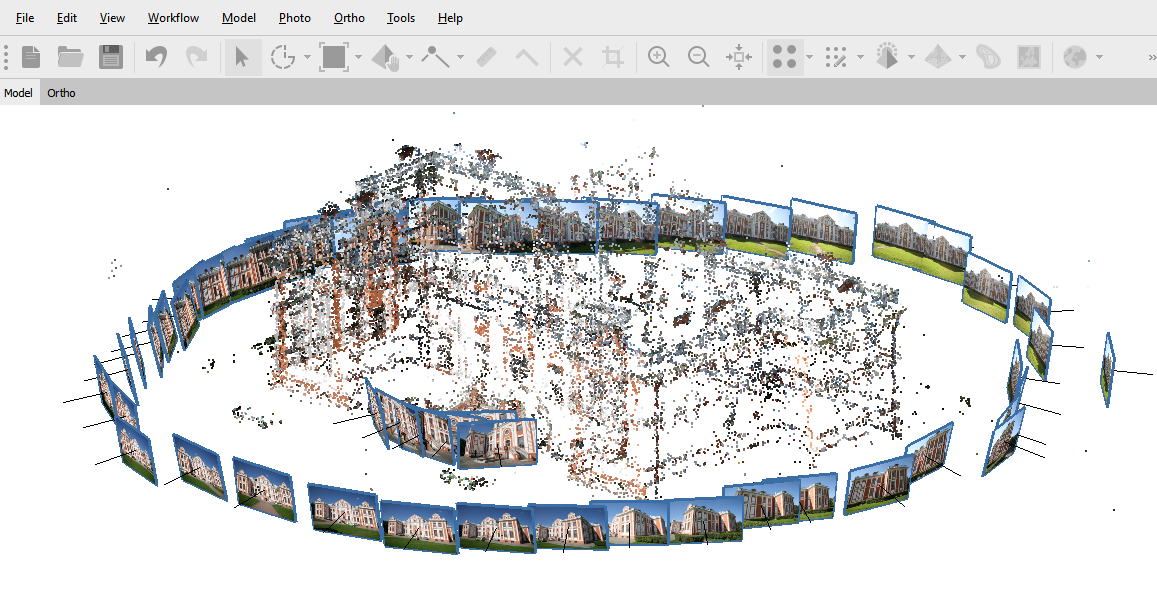
At this stage, Metashape estimates the camera position for each photo and builds the tie point cloud.
Select Align Photos command from the Workflow menu (Workflow > Align Photos). And set the following recommended values for the parameters in the Align Photos dialog:
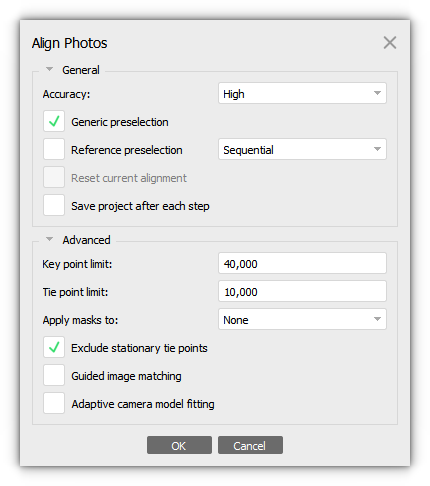
If you have a large number of images (more than 100), we recommend enabling - Generic preselection option, to reduce processing time.

For Key point limit the recommended range of 20 000 - 100 000.

For Tie point limit the recommended range of 2 000 - 40 000.
Click OK button to start photo alignment. After photo alignment is finished, refine bounding box position and orientation to fit the desired volume for reconstruction:
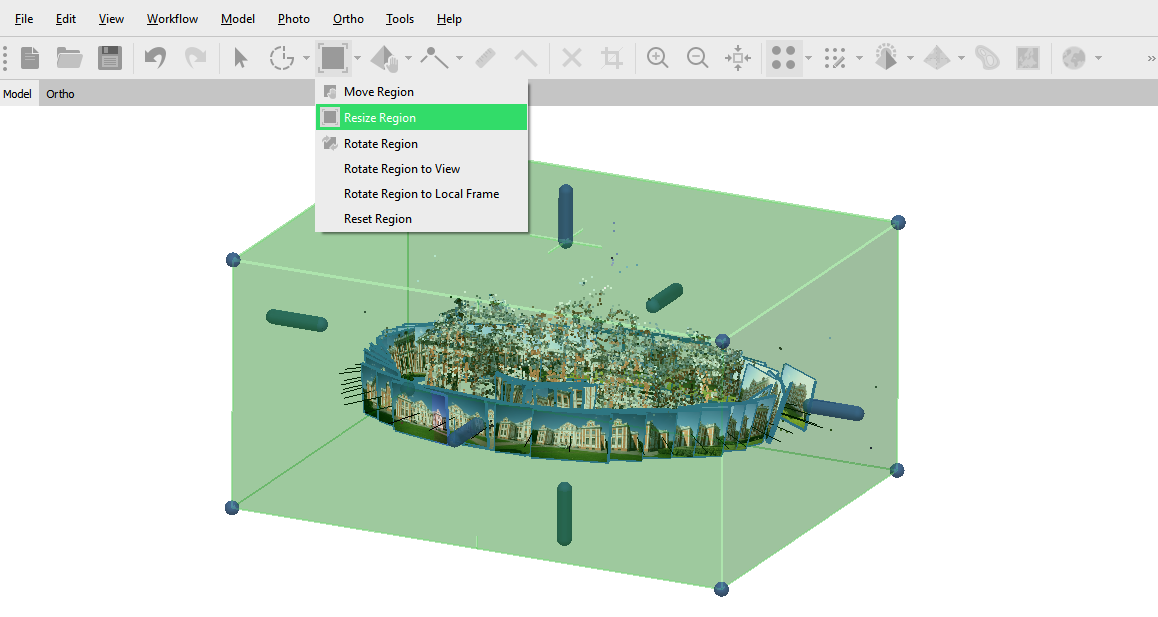
This step is optional since Metashape calculates bounding box dimensions, orientation and location automatically. But it is recommended to check if any correction is needed because further reconstruction step deals only with the data inside the volume. Bounding box can be resized, moved and rotated with the help Resize Region, Move Region, and Rotate Region tool:
Build Model
Metashape can reconstruct polygonal mesh model based on the point cloud information (Point Cloud, Tie Points) or based on the depth maps data. The second approach supports GPU acceleration and mostly provides better results for the same depth maps quality for objects and scenes with a big number of minor details.
Select Build Model command from the Workflow menu (Workflow > Build Model...). Set the following recommended values for the parameters in the Build Model dialog:
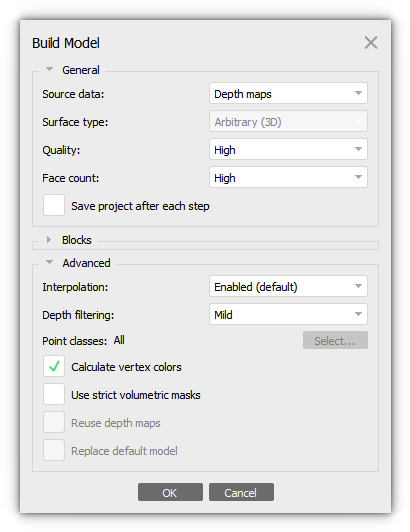
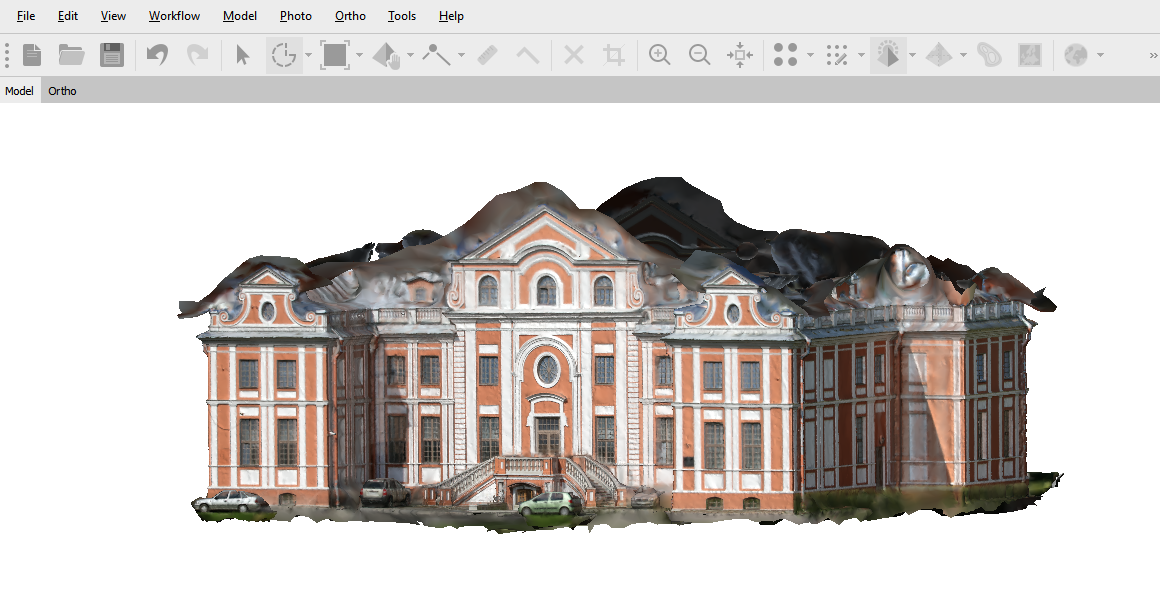
Click OK button to start building geometry. The result will be displayed in the Model view. We would also like to note that vertex colors are not a texture. To assign a texture to a model, you must additionally perform the texture building step, which is described in the next section.
Please note that our example does not include roof images, only terrestrial images, so there is no surface on the roof and there are small artifacts. These areas can be either masked before building the model - Working with masks or manually edited using selection tools - Advanced Selection tools for Point Cloud and Model.
If you need a point cloud as a result (not only polygonal model), then use the Build Point Cloud command from the Workflow menu.
Also, you can build a point cloud from mesh model using Model as Source data in the Build Point Cloud dialog window:Uniform point spacing (m) - specifies the desired distance between points of the point cloud to be generated.
Estimated point count - defines the expected number of points to be generated.
Build Texture
Select Build Texture command from the Workflow menu (Workflow > Build Texture...). Set the following recommended values for the parameters in the Build Texture dialog:
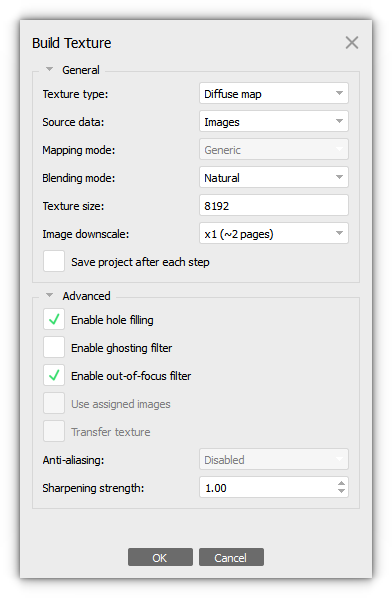
Click OK button to start building texture. The result will be displayed in the Model view:
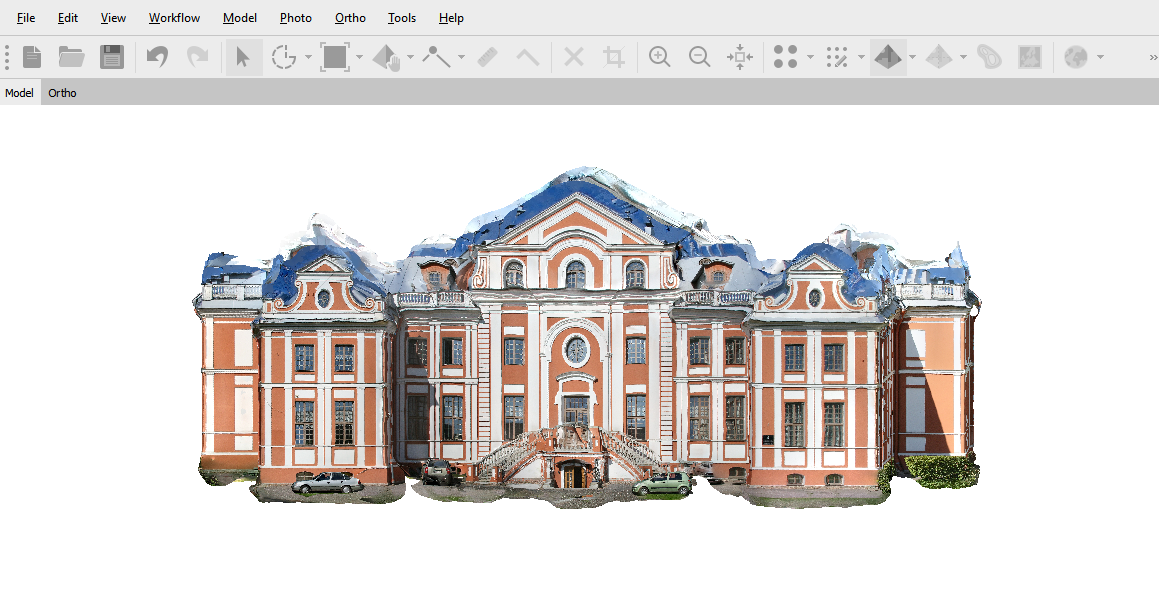
Usually, the texture atlas size in the range of 4096 - 16 384 pixels is sufficient.
Export Model
In case the model should be exported to the file, select Export Model... command from the File menu (File > Export > Export Model...). In the Export Model... in the dialog box, select options to export the 3D model.
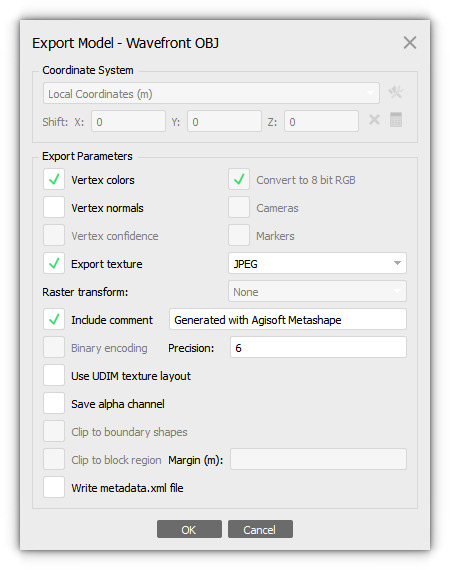
In the Export Model dialog indicate the desired export parameters. Note that the list of available exporting parameters depends on the selected file format. In the example *.obj format was selected.
Upload Data
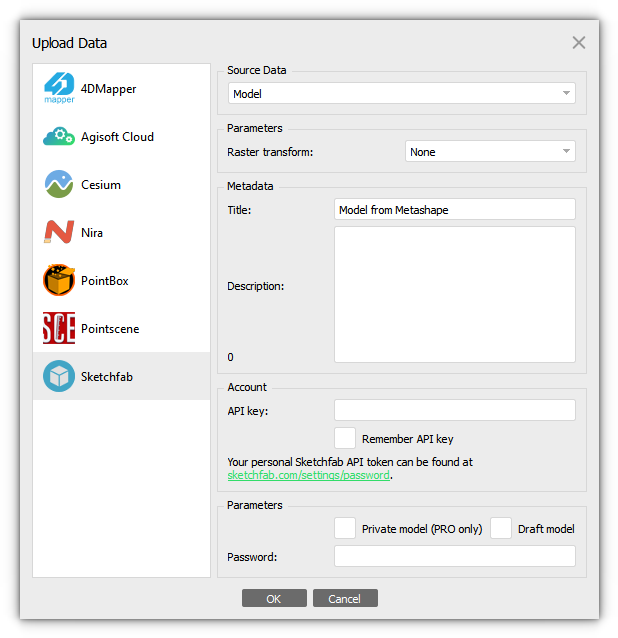
Metashape supports direct uploading of the generated data (Point cloud, Textured Model) to various online resources: 4DMapper, PointBox, Pointscene, Sketchfab.
To publish your model online use Upload Data... command from the File menu (File > Upload Data...).