
This tutorial illustrates how to perform different types of measurements based on the Digital Elevation Model (DEM) or Digital Terrain Model (DTM).
This workflow is suitable for the Metashape Professional version.
The article describes the following possible measurement tools:
Measure coordinates for shapes
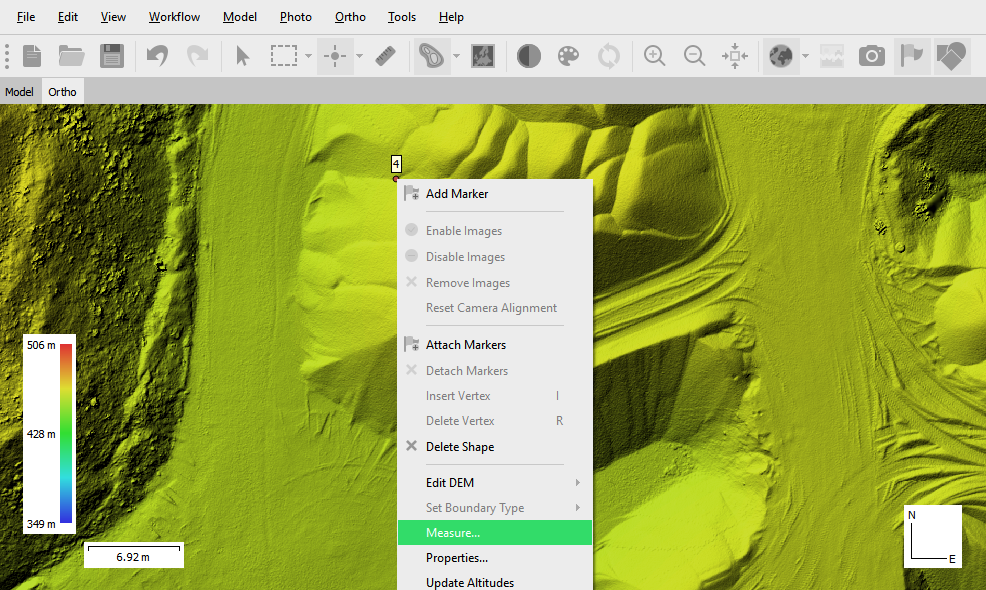
For drawn elements (points, polygons, or polylines), you can view the coordinates. To do this, select the shape on the DEM or draw a new one using the drawing tools on the Toolbar, and select the Measure... command from the shape's context menu. In our example, we created a point on the DEM:
In the opened Measure Shape dialog window on the Planar tab three-dimensional coordinates for the selected shape will be displayed:
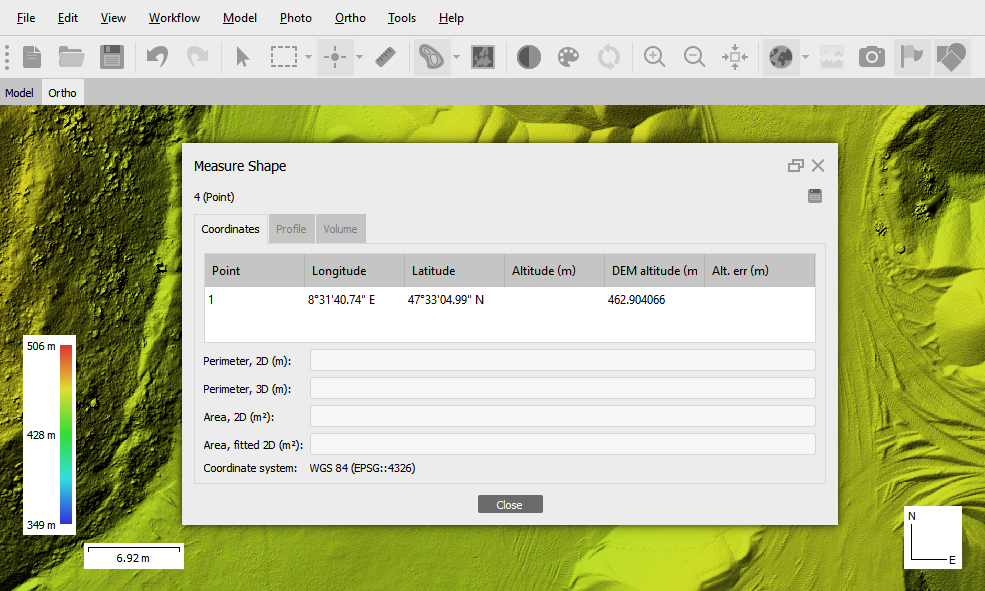
The Altitude (m) value is displayed if the shape was created in the Model view or if you used Update Altitudes option in the Ortho View:
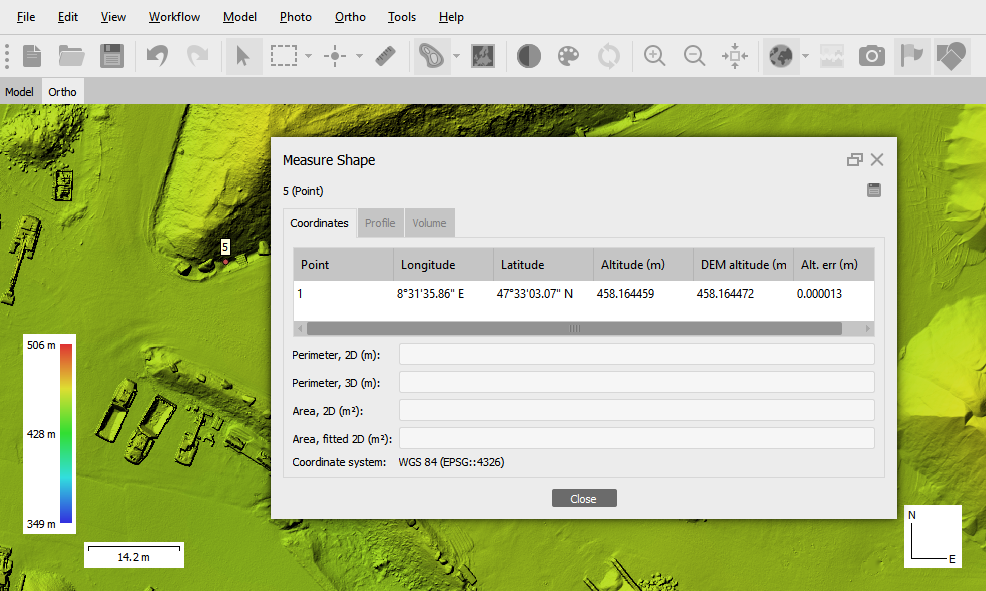
If the shape was created in the Ortho view, to display a shape in the Model view, select the Update Altitude command from the shape context menu:This option is available if you have a DEM in your project. If you have imported 2D shapefiles into your project, it is important to perform Update Altitude to display the shapes in the Model view.
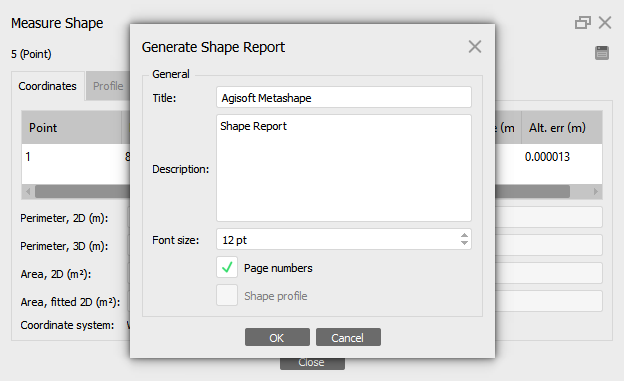
Using Save button the report data can be saved to PDF and HTML format:
Measure perimeter and area
Metashape allows to calculate the perimeter of a polylines, for polygon both perimeter and area are available to calculate. Values are calculated automatically for the selected shape. To do this, select Measure command from the shape context menu. In the opened Measure Shape dialog (on the Planar tab) the coordinates of the polyline/polygon vertices displayed and the calculated values for perimeter and area displayed:
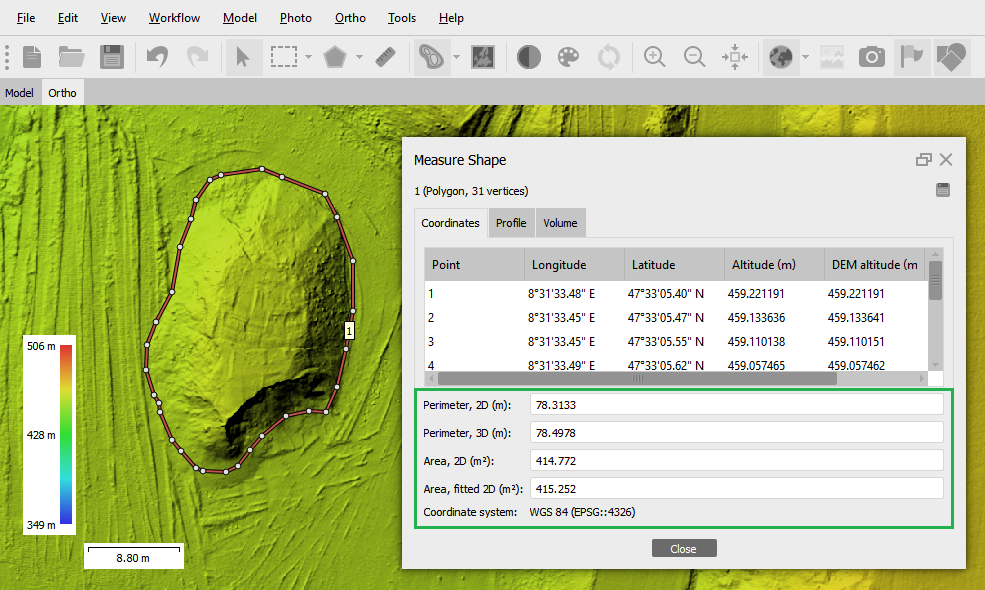
The value 2D means that the measurement is calculated from the projection of the figure on the XY plane, without taking into account the height difference. 3D value means that the measurement is performed on a surface.
- Perimeter, 2D (m) - sum of 2d segment lengths for the shapes, considering only XY coordinates of the shape vertices.
- Perimeter, 3D (m) - sum of 3d segment lengths for the shapes, considering XYZ coordinates of the shape vertices.
- Area, 2D (m2) - is calculated using only XY coordinates of the shape vertices, i.e. assuming that the shape lay on XY plane.
- Area, fitted 2D (m2) - shows the area covered by the shape on the best fit plane - plane that is calculated considering XYZ coordinates of the shape. I.e. the area values do not represent the area covered by the mesh polygons.
You should create a polygon or polyline in the Model view or use the Update Altitude option to calculate the values of Perimeter 3D and Area, fitted 2D.
Measure profile
The profile tool is also available through the Measure command from the shape context menu. In the Measure Shape dialog box, click the Profile tab. In Profile tab the profile information along the polyline (and polygon too) will be displayed:
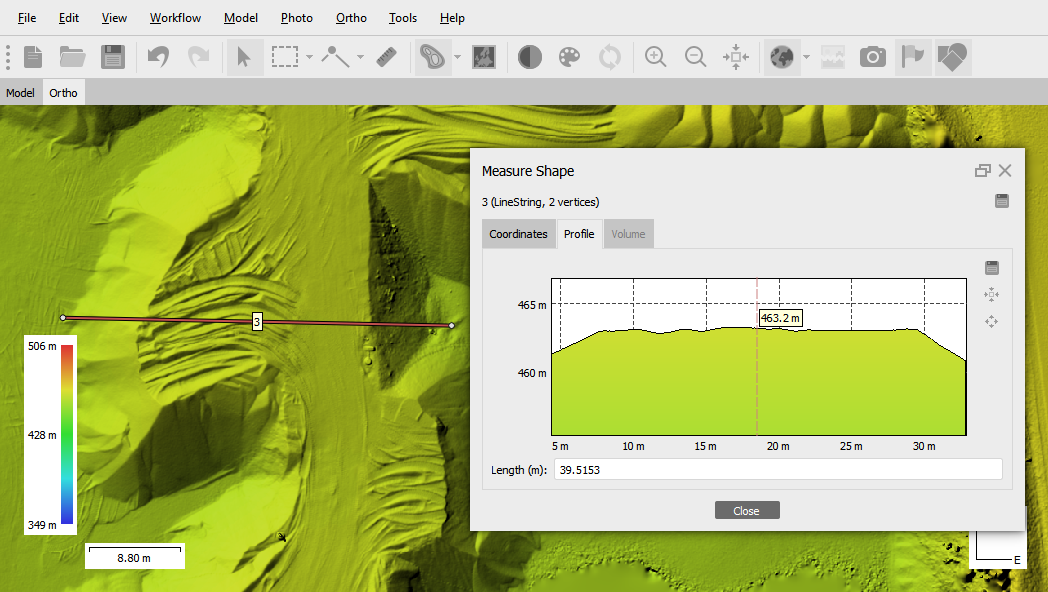
Moving the mouse over the profile will display the height information for the actual point. The Length field contains information about the length of the profile.
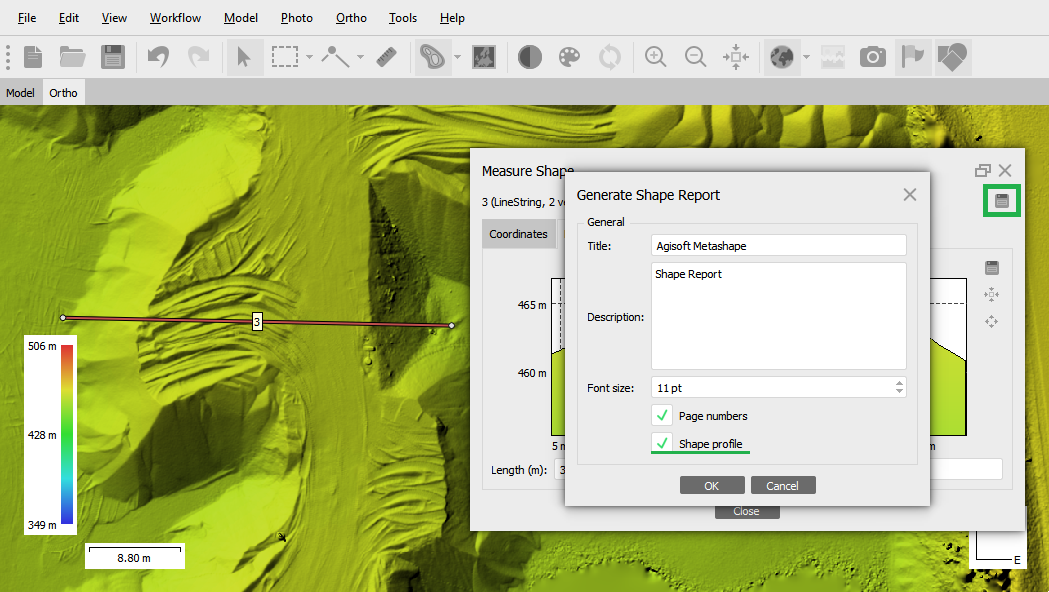
You can Generate Shape Report with a profile. Using Save button to generate the report. Enable Shape profile option in the Generate Shape Report dialog window to save the profile in the report. The report data can be saved to PDF and HTML formats.
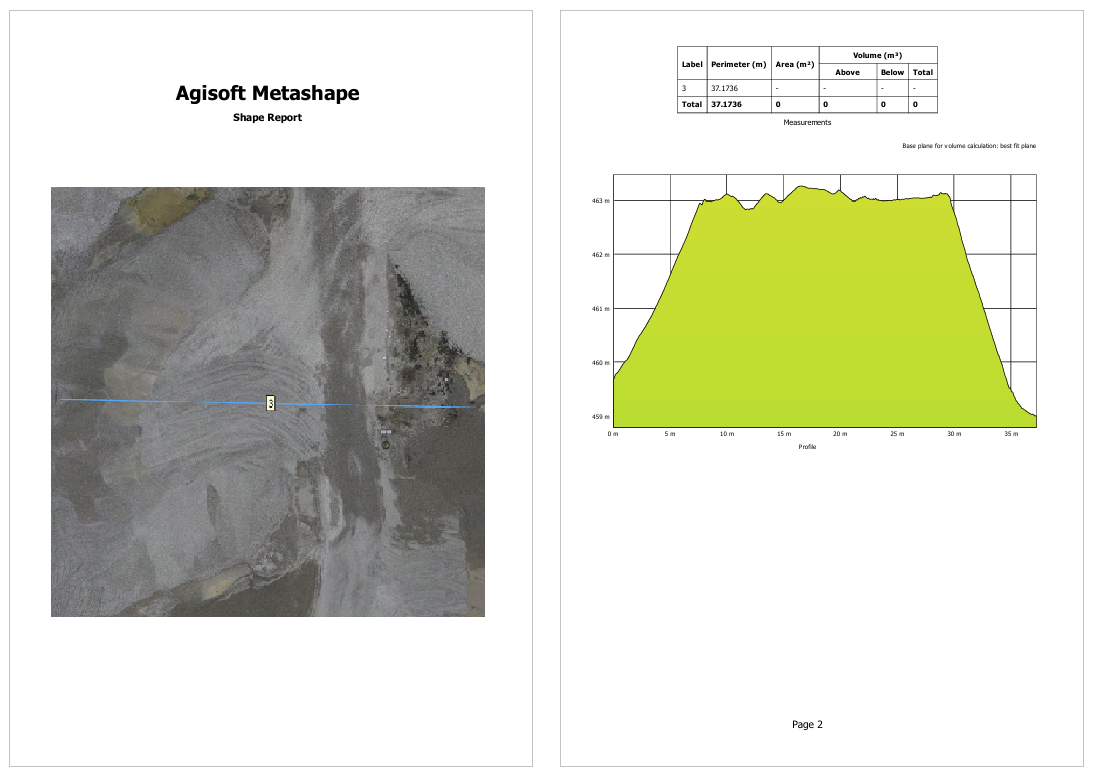
The report includes image with shapes, elevation mode, and table with shape parameters, such as perimeter.
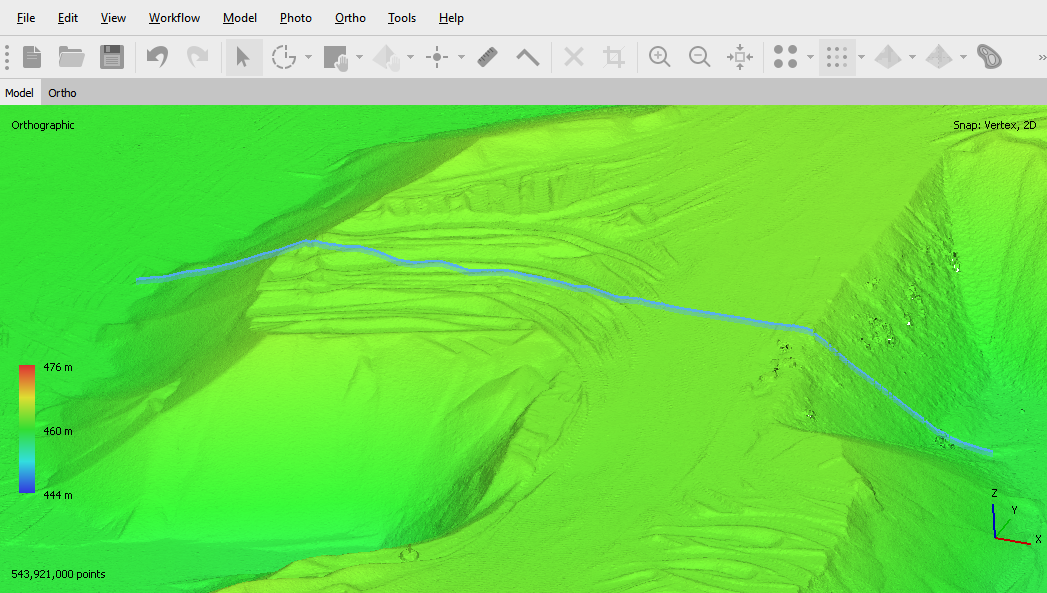
Using Save button the profile data can be saved to KML, SHP, DXF vector formats and in JPEG, JPEG 2000, PNG, TIFF, BMP, OpenEXR, TARGA raster formats.By exporting the profile in shapefile format, you can import it back into your project for 3D visualization in Model view:
Measure volume
The volume measurement tool is only available for polygons.
Select or draw a polygon for the area you want to calculate the volume for. Then, in the polygon's context menu, select the Measure command. In the Volume tab, the volume measurements are displayed. You can select one of the three supported options for the volume calculation: Best Fit, Mean level or Custom level plane:
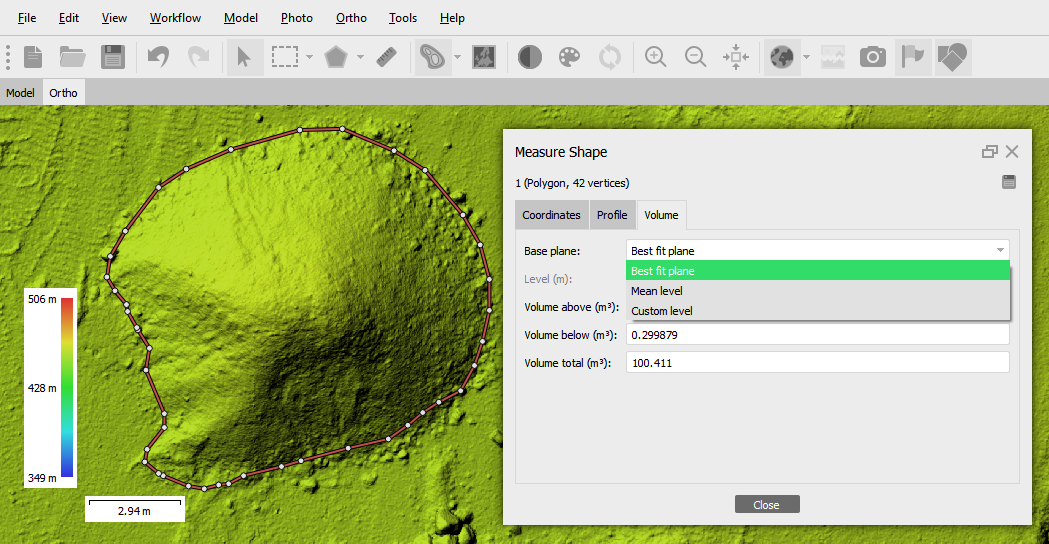
Best fit and mean level planes are calculated based on the altitudes of the bounding polygon vertices. Volume measured against custom level plane allows tracing volume changes for the same area in the course of time. The Level is set by the user in the corresponding box. Update button should be pressed for the Volume to be re-calculated against the set level.
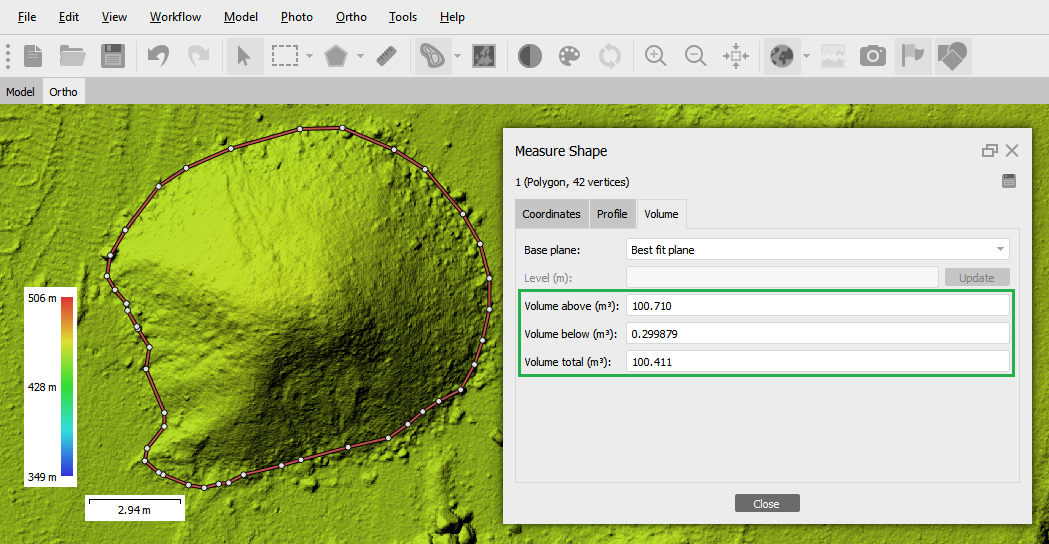
Volume is calculated Above set level and Below set level, also Total volume value is calculated according to the following formula: Total volume = Volume above - absolute value of the Volume below

Volume measurement fields contain information about the volume above the selected plane, below it, and total volume:
Using Save button the report data can be saved to PDF and HTML formats. The Report includes image with shapes, elevation model and table with shapes parameters such as perimeter, area, volume (above, below, total). If you have enabled the Shape profile option, the report will also display the profile:
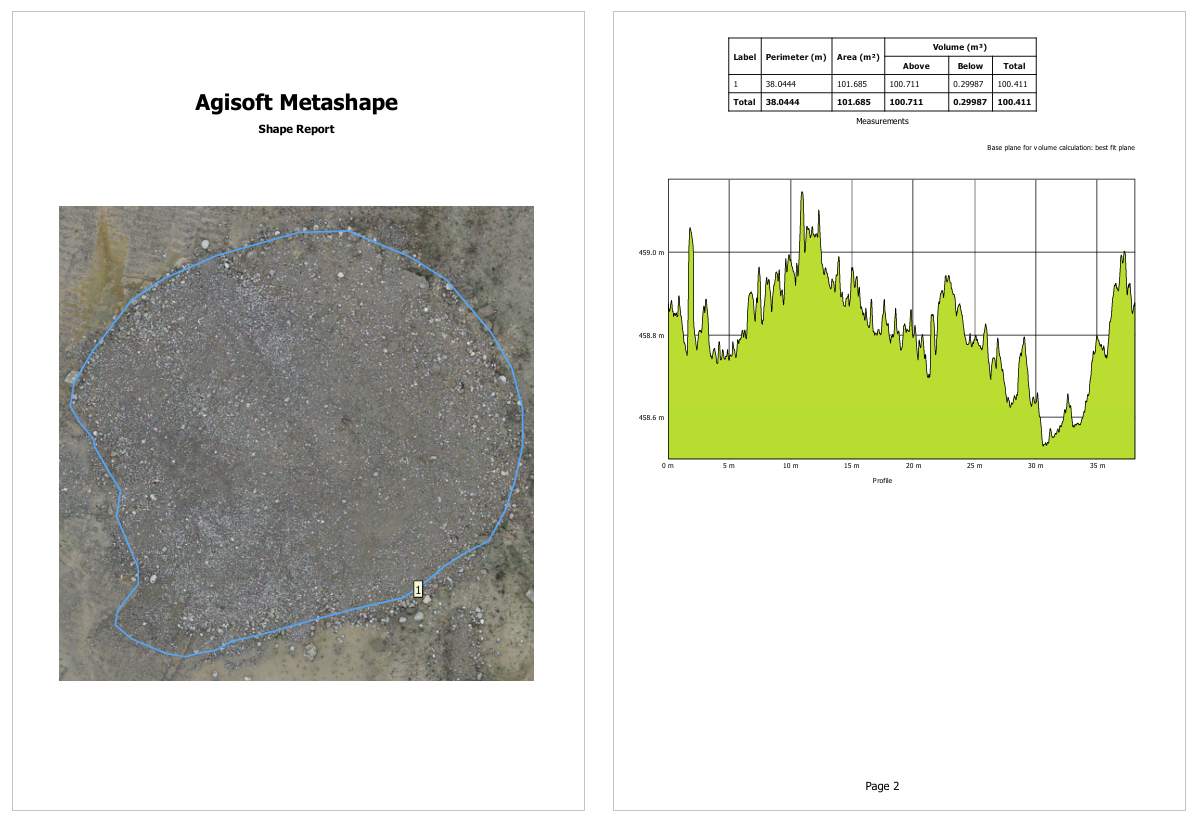
The shape in the report is displayed with the same parameters that you set in the project. To customize the shape style, select the Properties... command from the shape context menu in the Ortho or Model view. You can find more information about how to sharpen a style for shaping in our article - Vectorization tools.